
Managing Connections
TablePro connects to 23 databases through its plugin system. This page covers creating and organizing connections. Driver-specific fields and quirks live on each database’s own page.Supported Databases
Transport details: SSH Tunneling, SSL/TLS, Cloudflare Tunnel, Cloud SQL Auth Proxy, SOCKS Proxy.
Creating a Connection
The Welcome window appears on launch. The left panel has Create Connection, Import from Other App, and Try Sample Database; saved connections are on the right, with a search field in the header (Cmd+F focuses it).


Welcome window
- Click Create Connection (or press
Cmd+Nanywhere) - Pick a database type from the chooser sheet
- Fill in connection details
- Click Test Connection. A green Connected pill confirms success
- Click Save & Connect
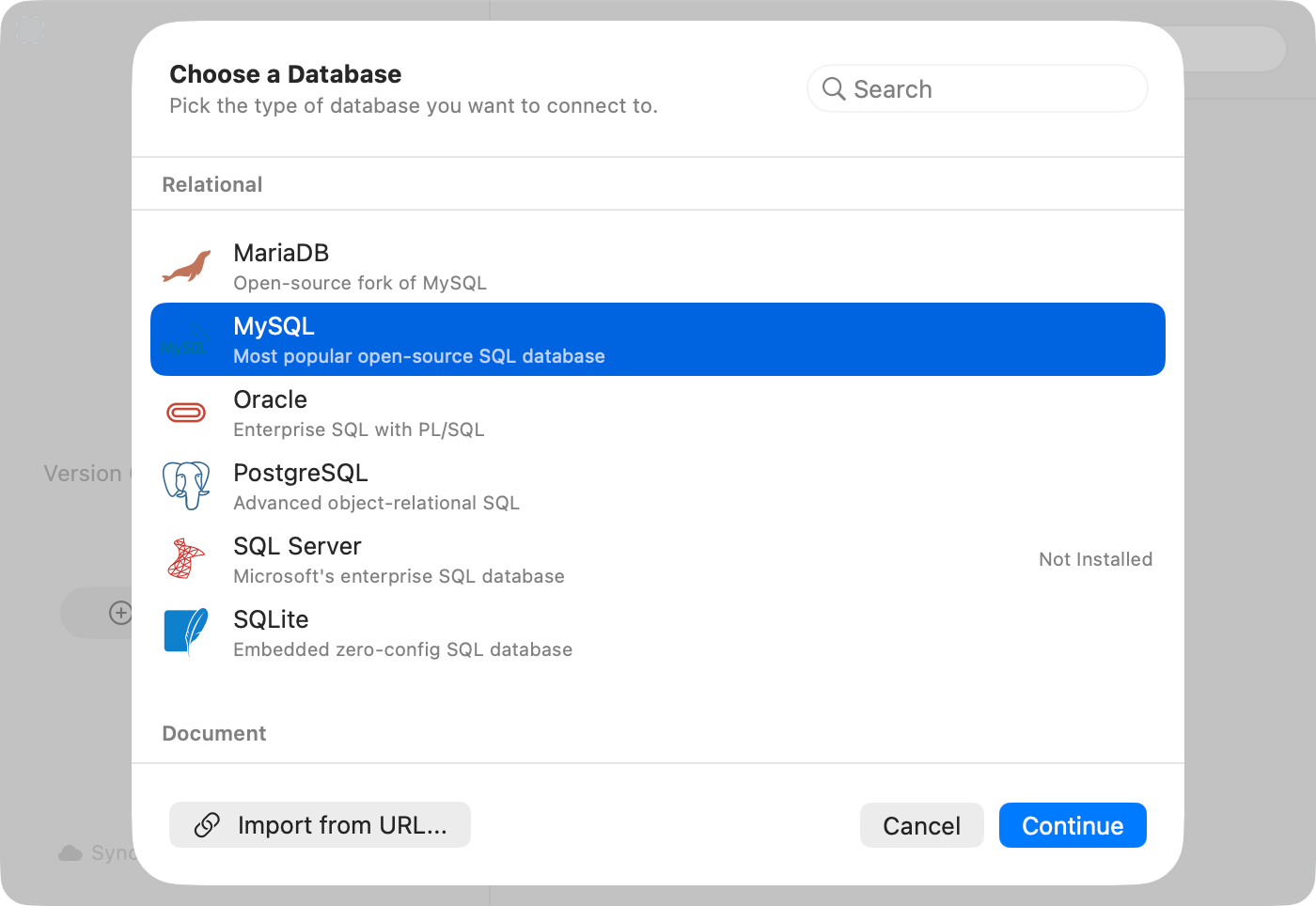
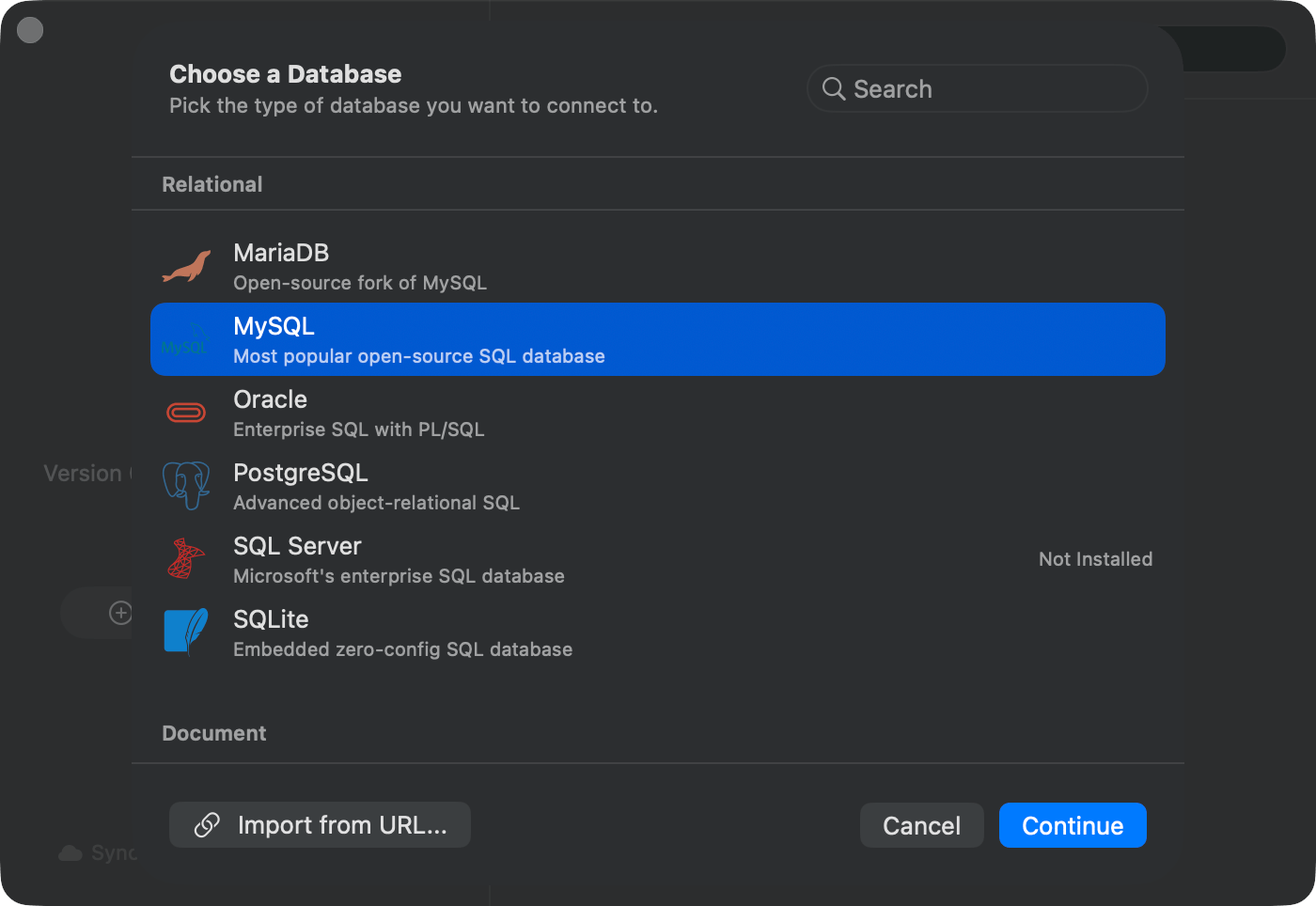
Database type chooser
Import from URL
Paste a connection string and let TablePro fill in the form. In the chooser sheet footer, click Import from URL…, paste the URL, review the parsed preview, and click Import. The form opens pre-filled so you can review and save. See Connection URL Reference for schemes and formats.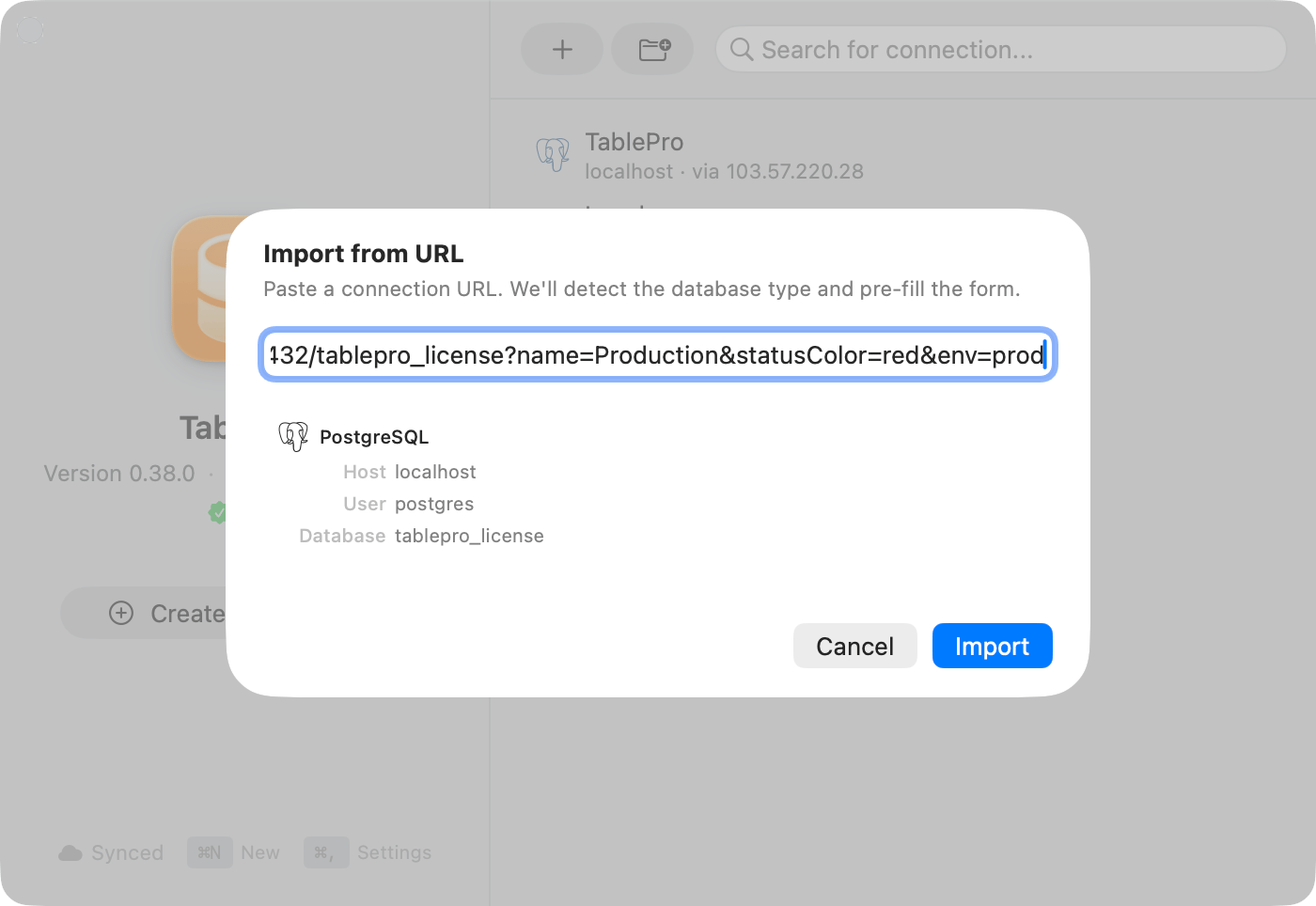
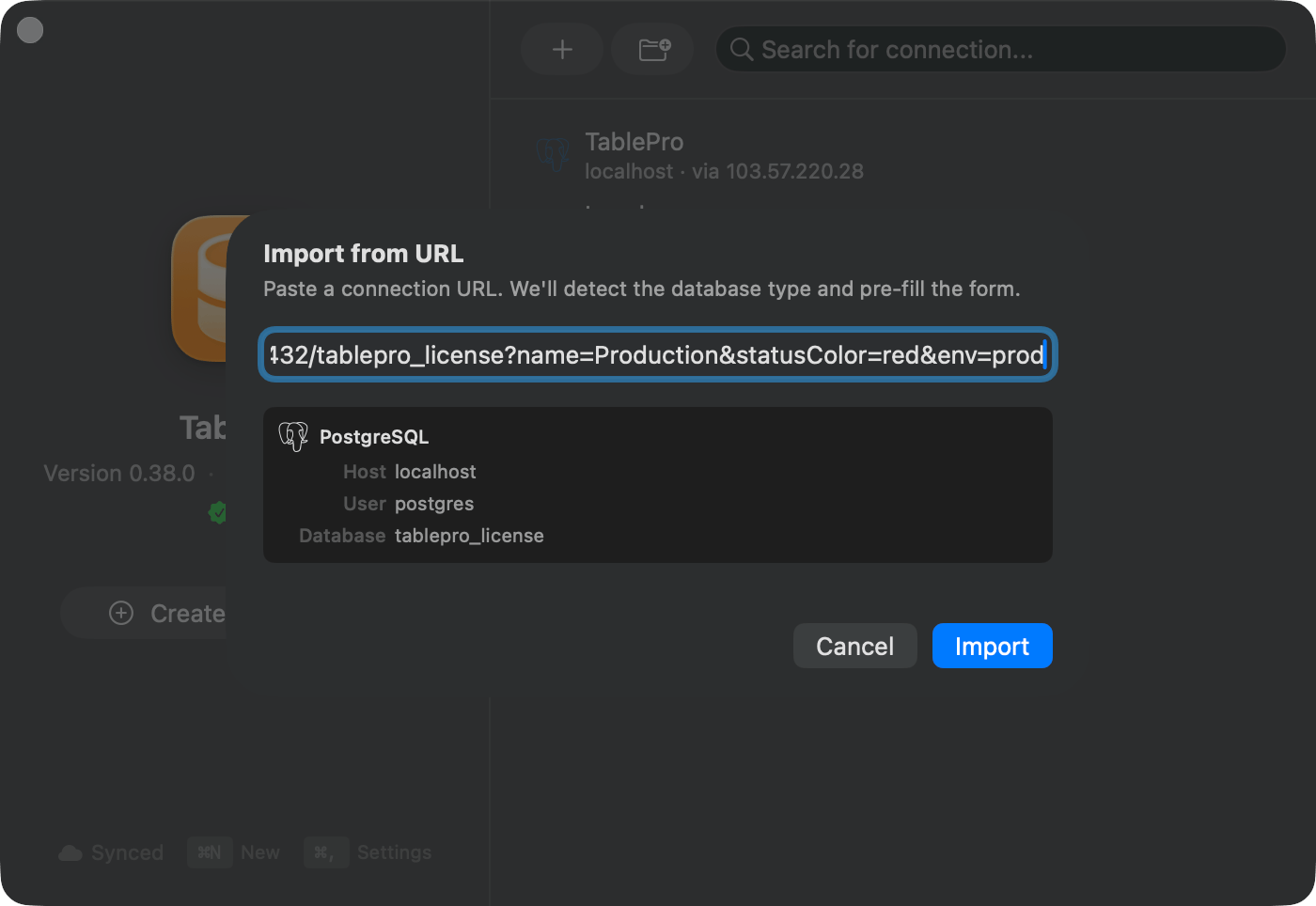
Import from URL sheet with parsed preview
Open a URL Directly
Opening a database URL from a browser or terminal skips the form:postgresql, postgres, mysql, mariadb, sqlite, mongodb, mongodb+srv, redis, rediss, redshift, cockroachdb, cockroach, mssql, sqlserver, oracle, clickhouse, ch, cassandra, cql, scylladb, scylla, duckdb, etcd, etcds, d1, libsql, and surrealdb.
What happens on open:
- A confirmation alert shows the connection target before anything connects. For loopback hosts you can pick Always Allow, which trusts that exact combination of type, host, database, username, and the URL’s
nameparameter for future opens - If a saved connection matches the host, port, database, and username, TablePro reuses it. Otherwise it creates a temporary session that is not added to your connection list
- The URL password stays in memory for the session. It is never written to the Keychain
- If the connection has a pre-connect script, TablePro shows the script and asks before running it
- URLs can target a table or apply a filter via query parameters; filters also require confirmation. See Connection URL Reference
Connection Form
The form is a sidebar with up to nine panes. Tunnel and SSL panes appear only for drivers that support them (see the matrix above). A warning triangle on a sidebar item marks missing required fields.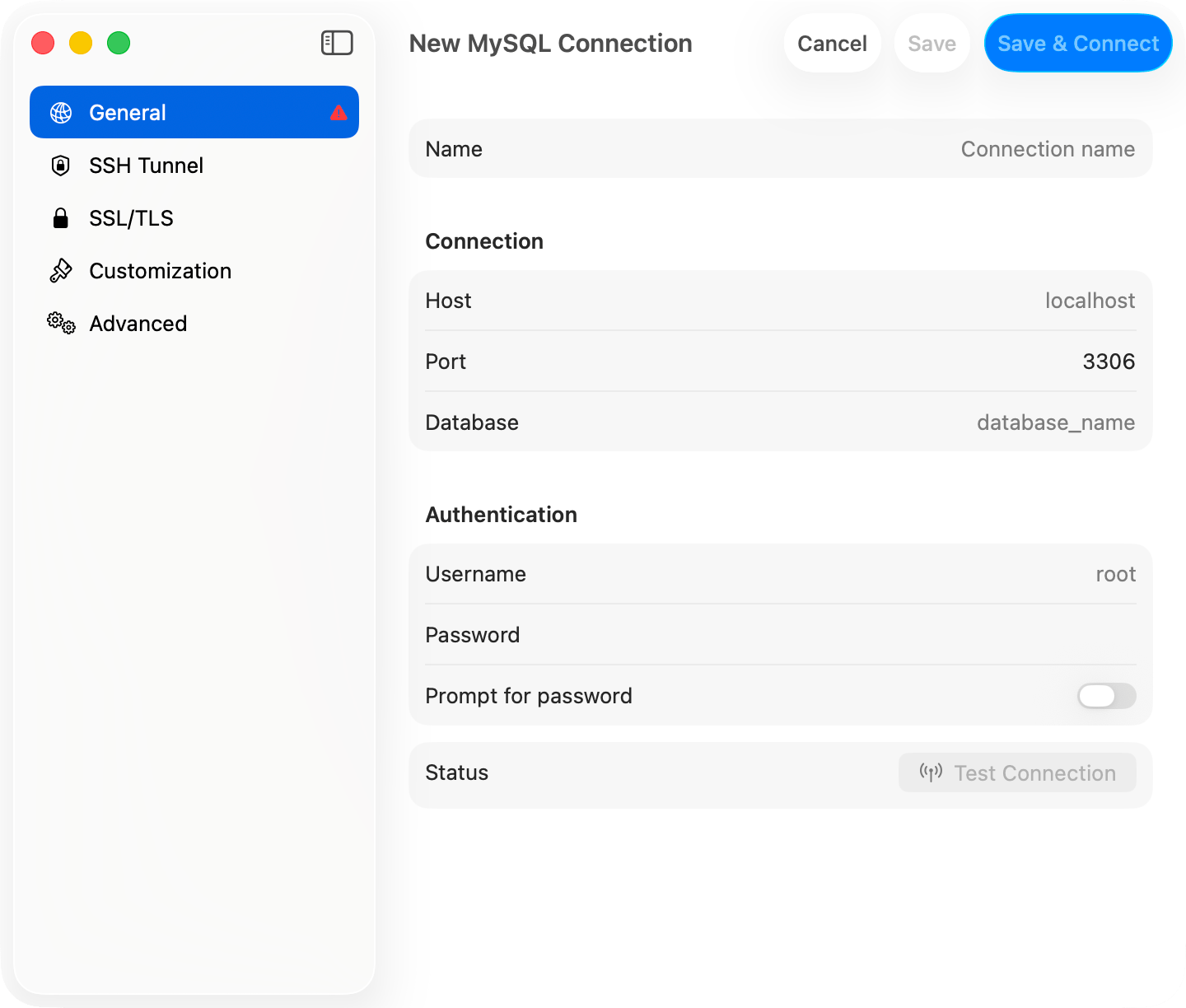
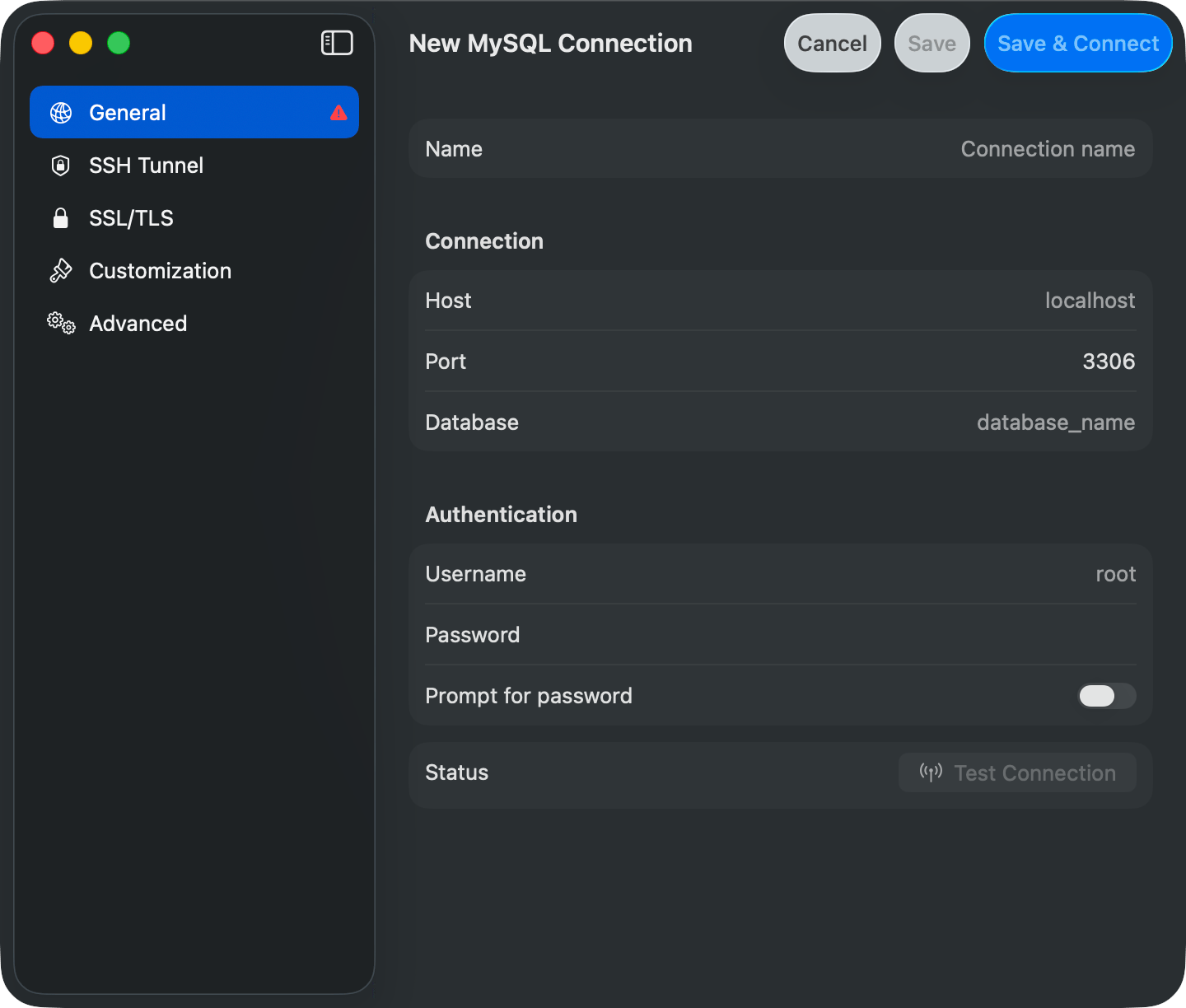
Connection form with sidebar navigation
General
File-based drivers (SQLite, DuckDB, Beancount) replace the host section with a file path picker.
Advanced
Organizing Connections
The Customization pane sets a color, tags, and a group per connection. The color tints the toolbar when connected, so production and development are easy to tell apart.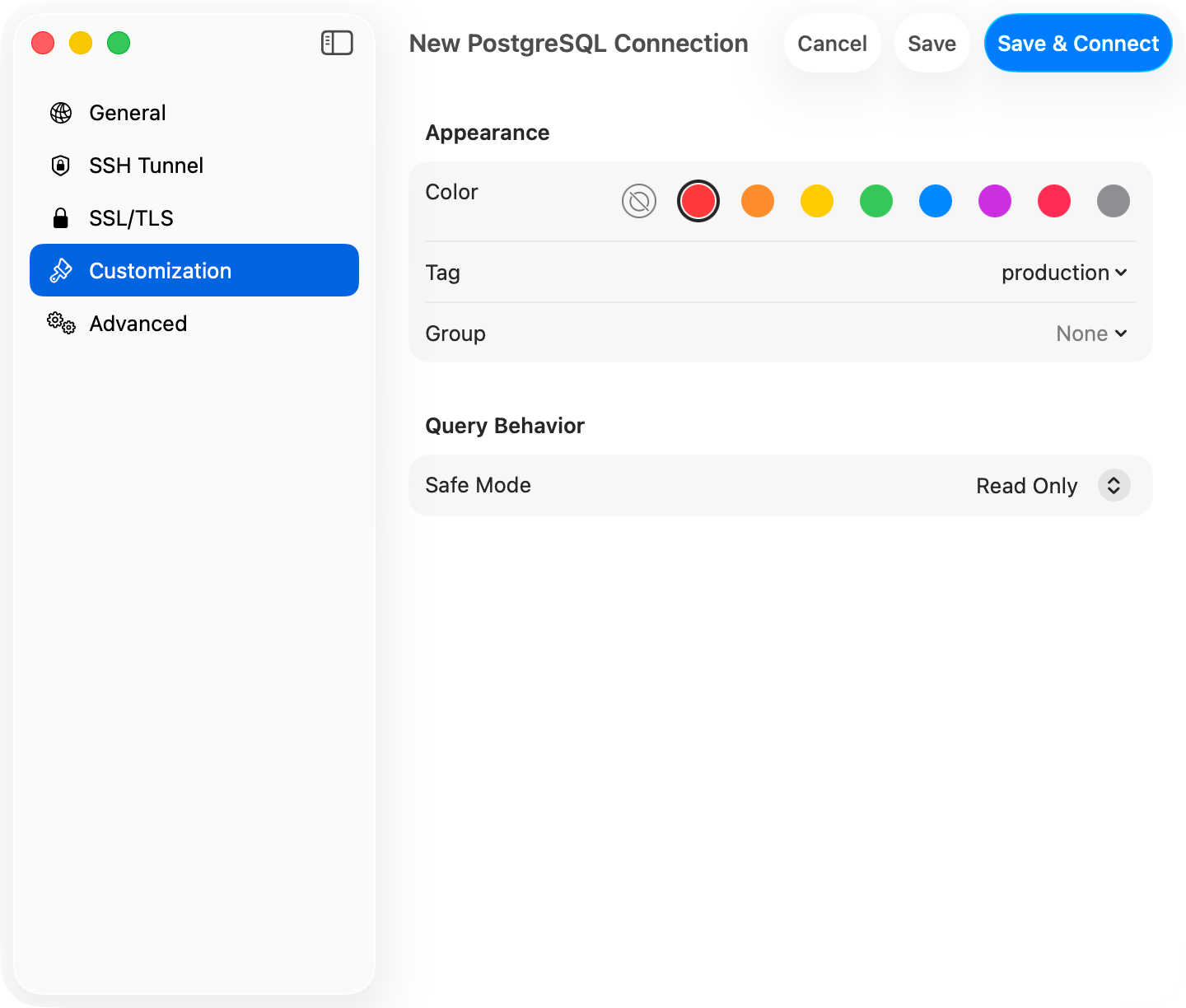
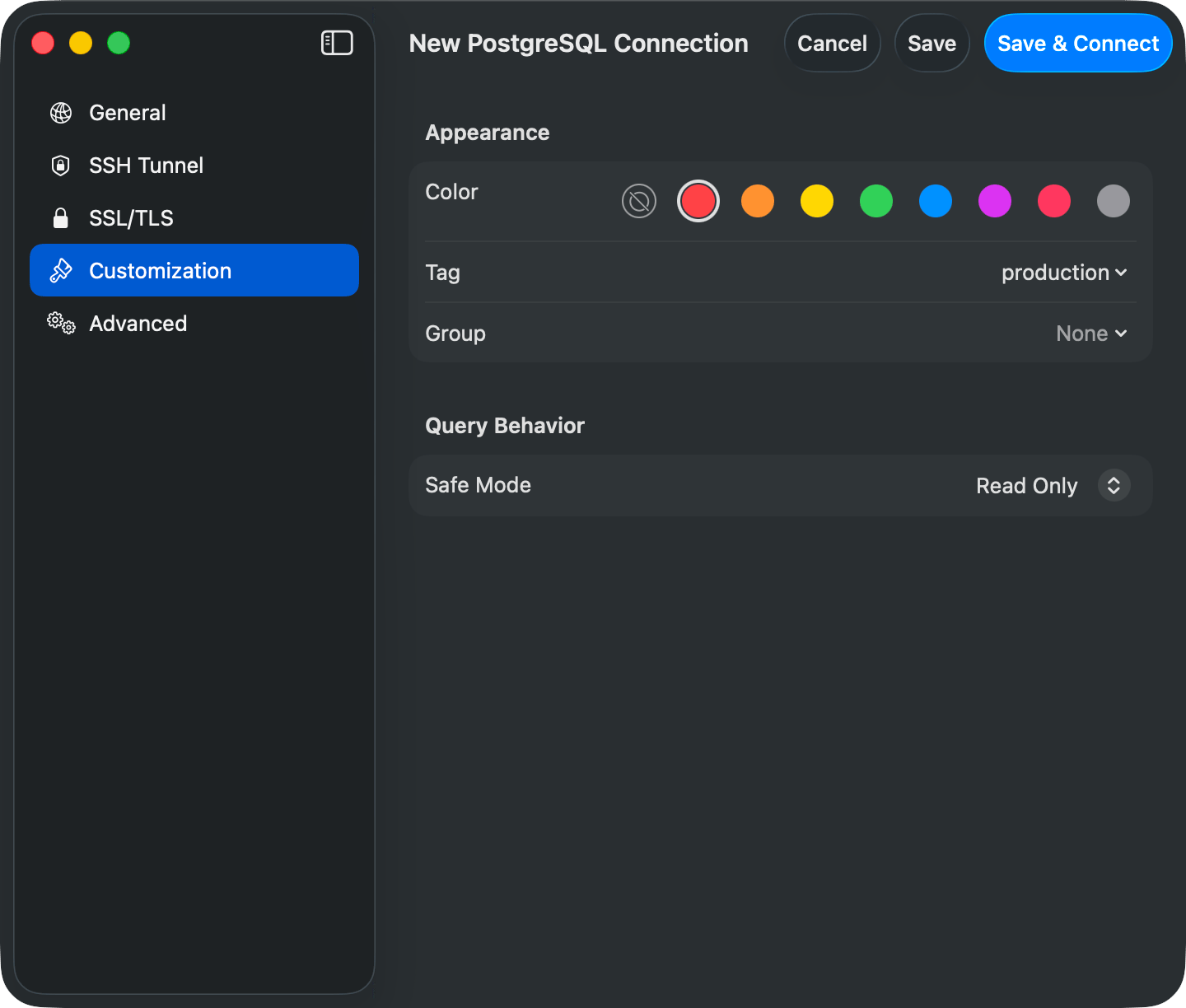
Customization pane
Groups
Groups are folders in the connection list, nested up to 3 levels. Right-click empty space or a group to create, move, or delete one. Deleting a group removes its subgroups; the connections inside are ungrouped, not deleted.Tags
A connection can carry multiple tags, each with a name and color. When any connection has tags, a filter bar appears above the welcome list with one pill per tag. Click pills to filter; with two or more selected, a Match Any / Match All menu switches between OR and AND matching, and Clear resets the filter.Favorites
Hover a connection row and click the star, or right-click and choose Add to Favorites. Favorites gather in a section at the top of the list, sorted alphabetically, while the connection stays in its group below. Favorites sync through iCloud unless the connection is marked local only.Switching Connections and Databases
- Switch Connection (
Cmd+Control+C): a toolbar popover lists active sessions and saved connections. Type to filter, arrow keys to move, Return to switch - Open Database (
Cmd+K): switch databases on the same server without reconnecting
Database switcher in toolbar
postgres (Redshift: dev) and switch with Cmd+K.
When the sidebar is in tree layout, the filter button in the sidebar footer limits the tree to checked databases. The choice is saved per connection.
Dock Menu
Right-click the TablePro Dock icon and pick a saved connection under Open Connection.Connection Health Monitoring
TablePro pings every active connection every 30 seconds and skips the ping while one of your queries is running. File-based drivers (SQLite, DuckDB, Beancount) and Snowflake are not monitored. When a ping fails, TablePro reconnects with exponential backoff: 2s, 4s, 8s, doubling up to a 120-second cap, and keeps retrying until the connection recovers or you close it. Authentication failures stop the retries, since an expired credential never recovers on its own. Reconnecting rebuilds the SSH tunnel if there is one, restores the selected database and schema, and re-runs startup commands. The session shows as connecting while this happens.Startup Commands
SQL statements that run after every connect, including auto-reconnects. Configure them in the Advanced pane; statements are split on semicolons and newlines and run in order.Editing, Deleting, and Storage
Right-click a connection to edit or delete it. Changes apply on the next connect; deleting removes the saved settings only. Connections are stored in~/Library/Application Support/TablePro/connections.json. Passwords live in the macOS Keychain, so a copied file restores connections but not passwords.