
Quick Start Guide
Install TablePro, connect to a database, and run your first query.Step 1: Install
Install via Homebrew (brew install --cask tablepro) or download the DMG from GitHub Releases. See Installation.
Step 2: Create Your First Connection
The welcome window has an actions panel on the left (Create Connection, Import from Other App, Try Sample Database) and your saved connections on the right. The search field,+ button, and group button sit at the top of the connections panel; press Cmd+F to focus search. Each connection shows its tag and group, so you can tell production from staging at a glance.
- Try Sample Database opens the bundled Chinook SQLite database, no server needed. Reset it any time from File > Reset Sample Database….
- Import from Other App… copies your saved connections from TablePlus, DataGrip, Beekeeper Studio, and other clients.
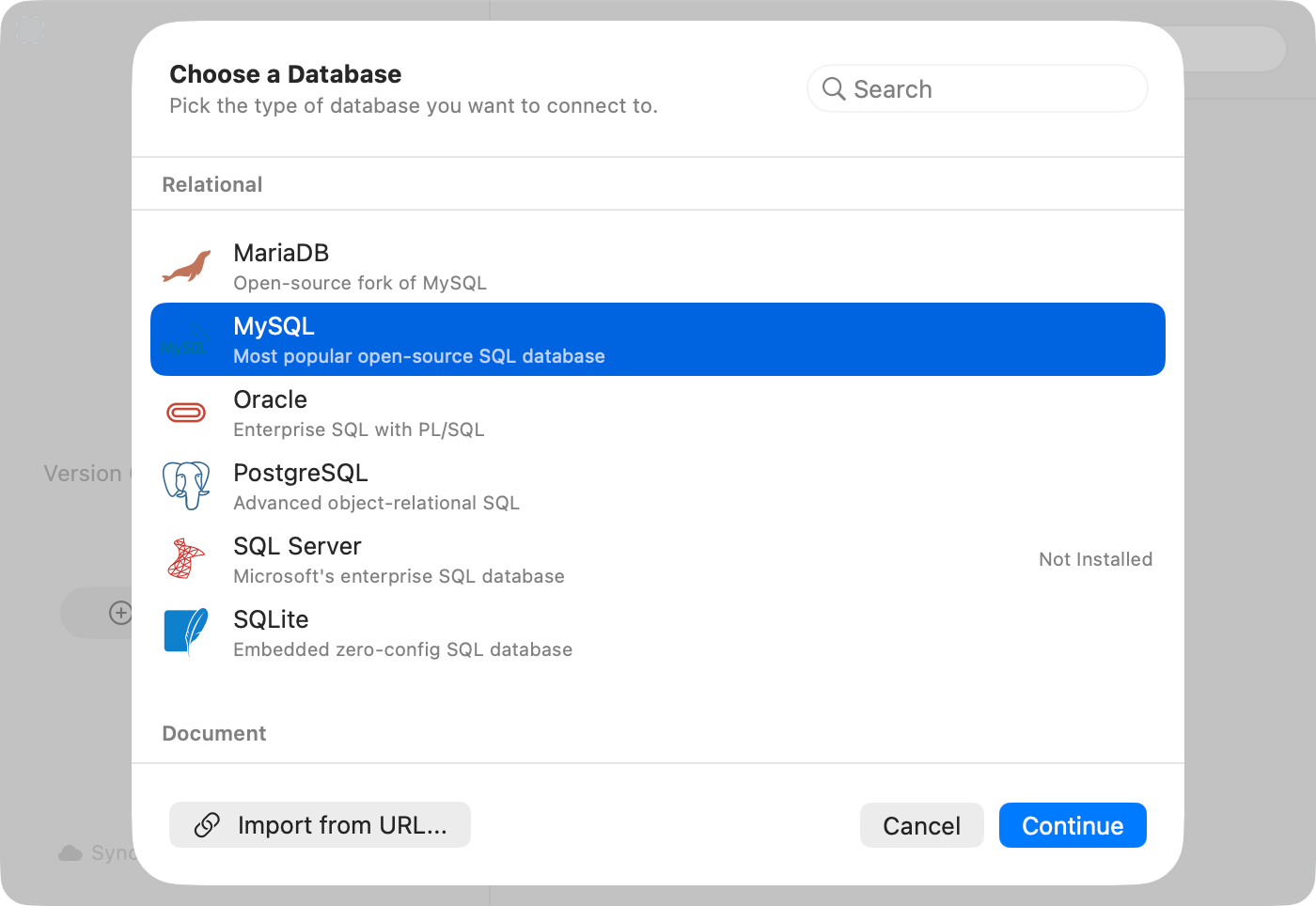
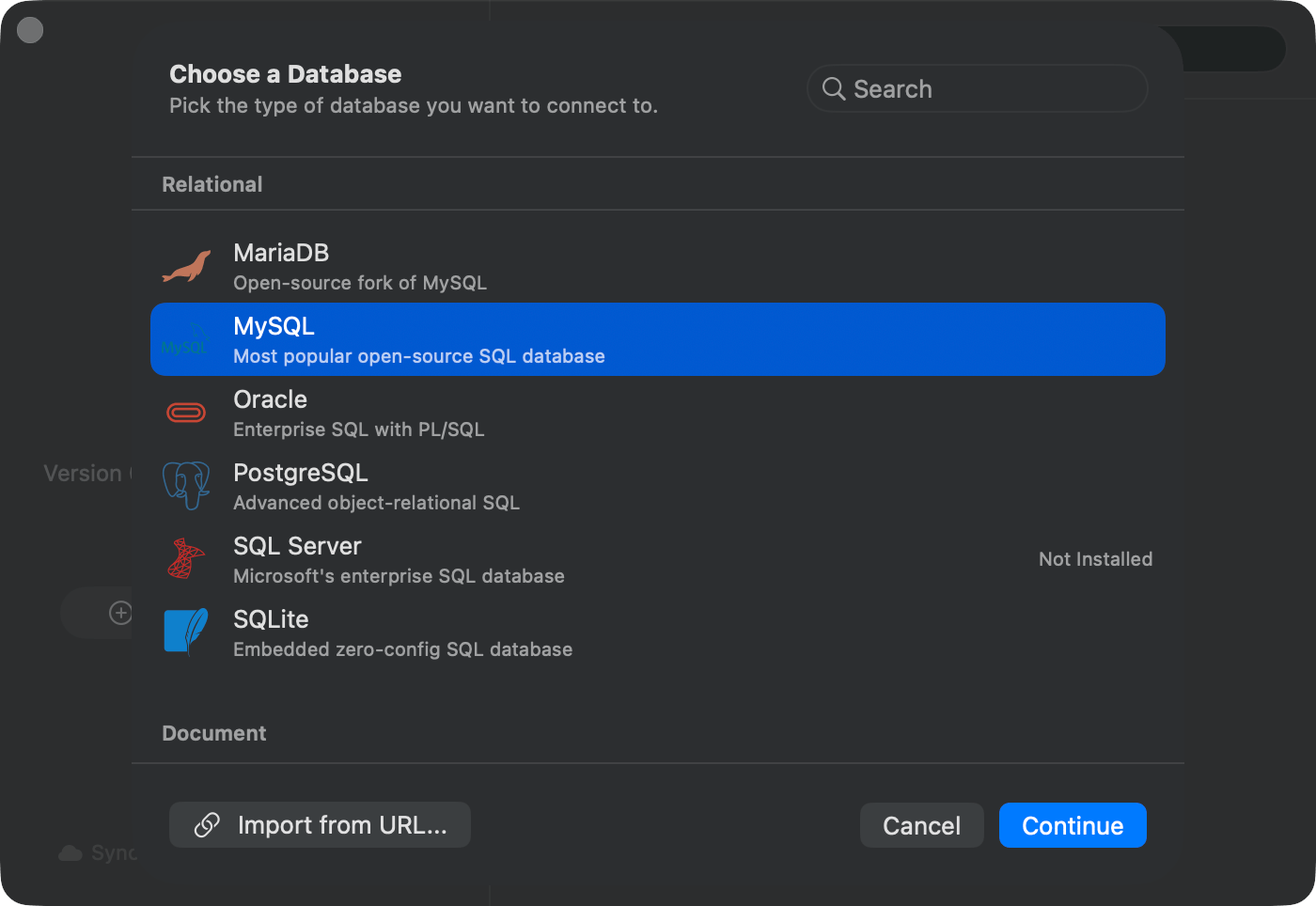
Pick a database type
Databases beyond the bundled drivers (MongoDB, Oracle, MSSQL, and others) run as plugins. The first time you pick one, TablePro asks to download the driver before opening the form.
Step 3: Fill In, Test, and Save
The form pre-fills the host (localhost) and the default port. The username is optional; leave it empty and the database uses its own default, the same way psql and mysql do. Typical values:
- MySQL: port
3306 - PostgreSQL: port
5432 - MongoDB: port
27017 - SQLite: browse to a
.sqliteor.dbfile, no auth needed
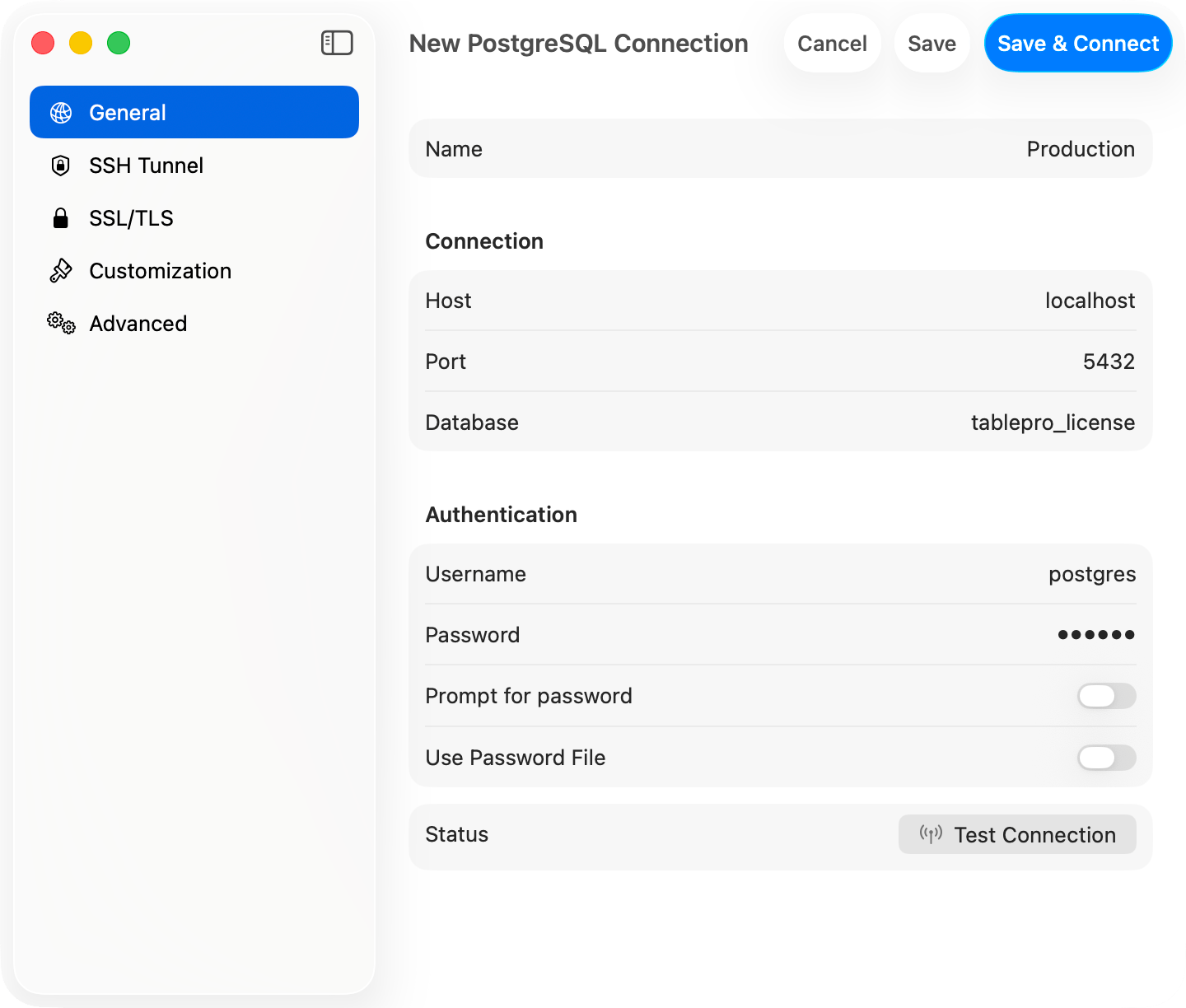
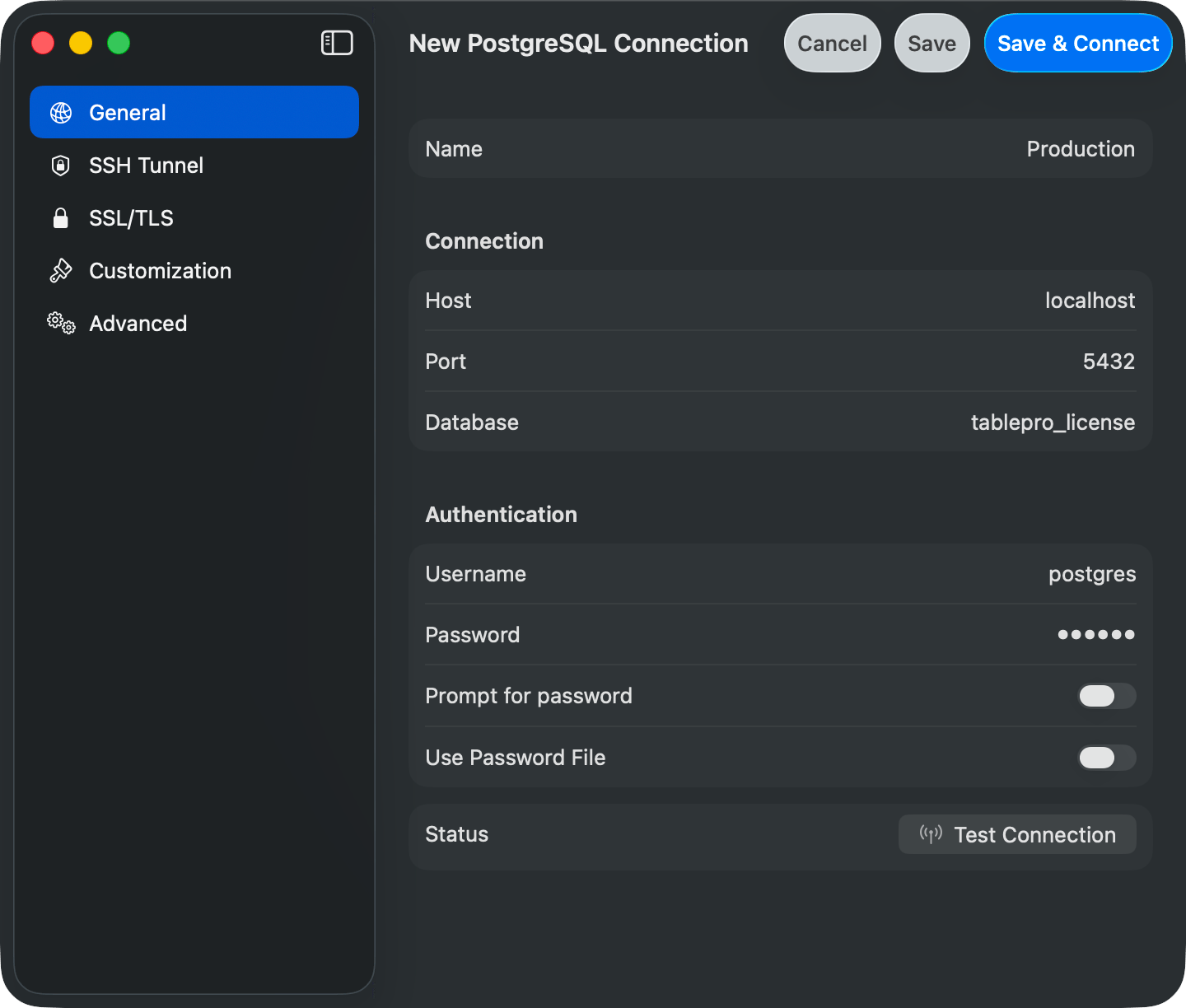
PostgreSQL connection form
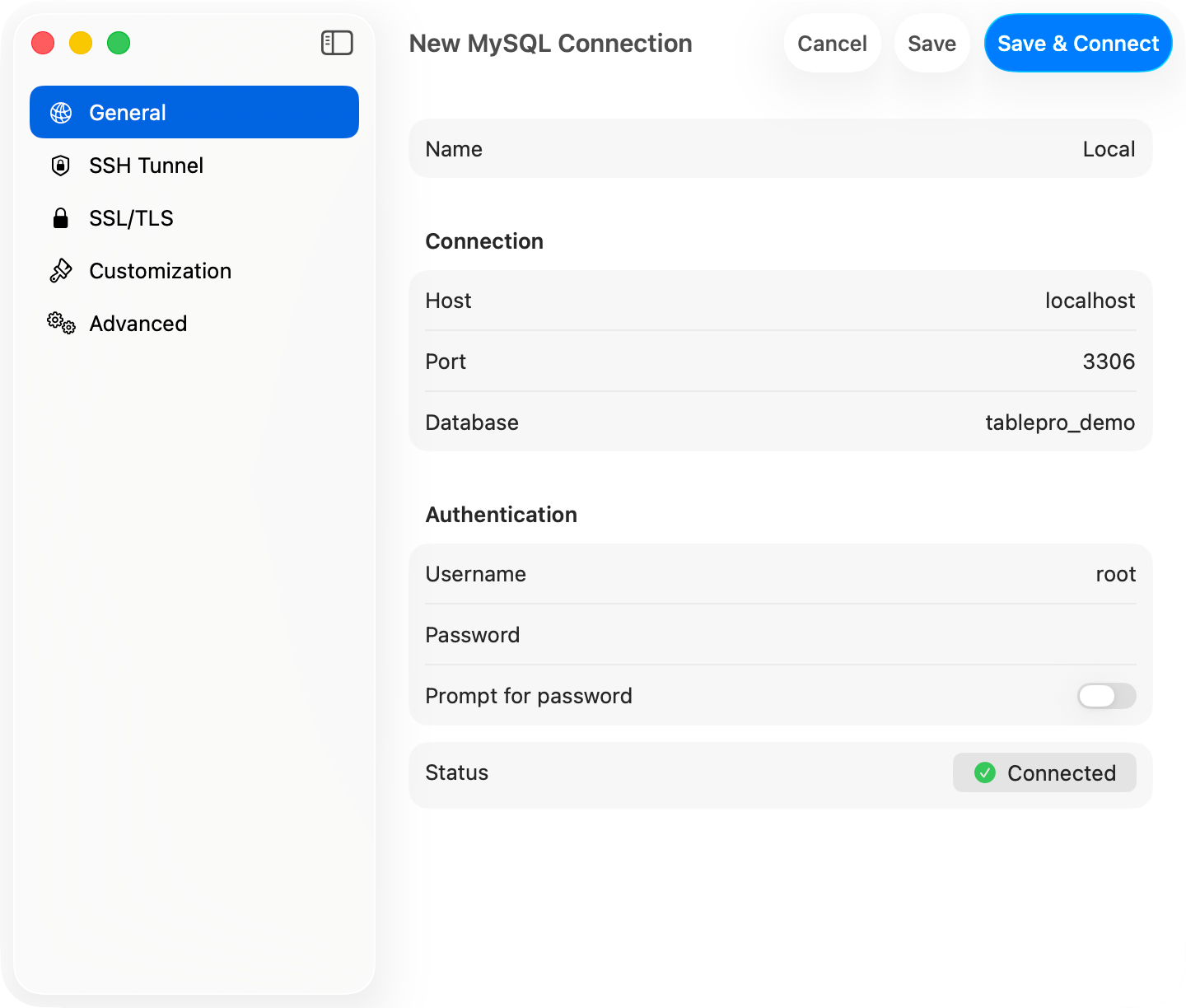
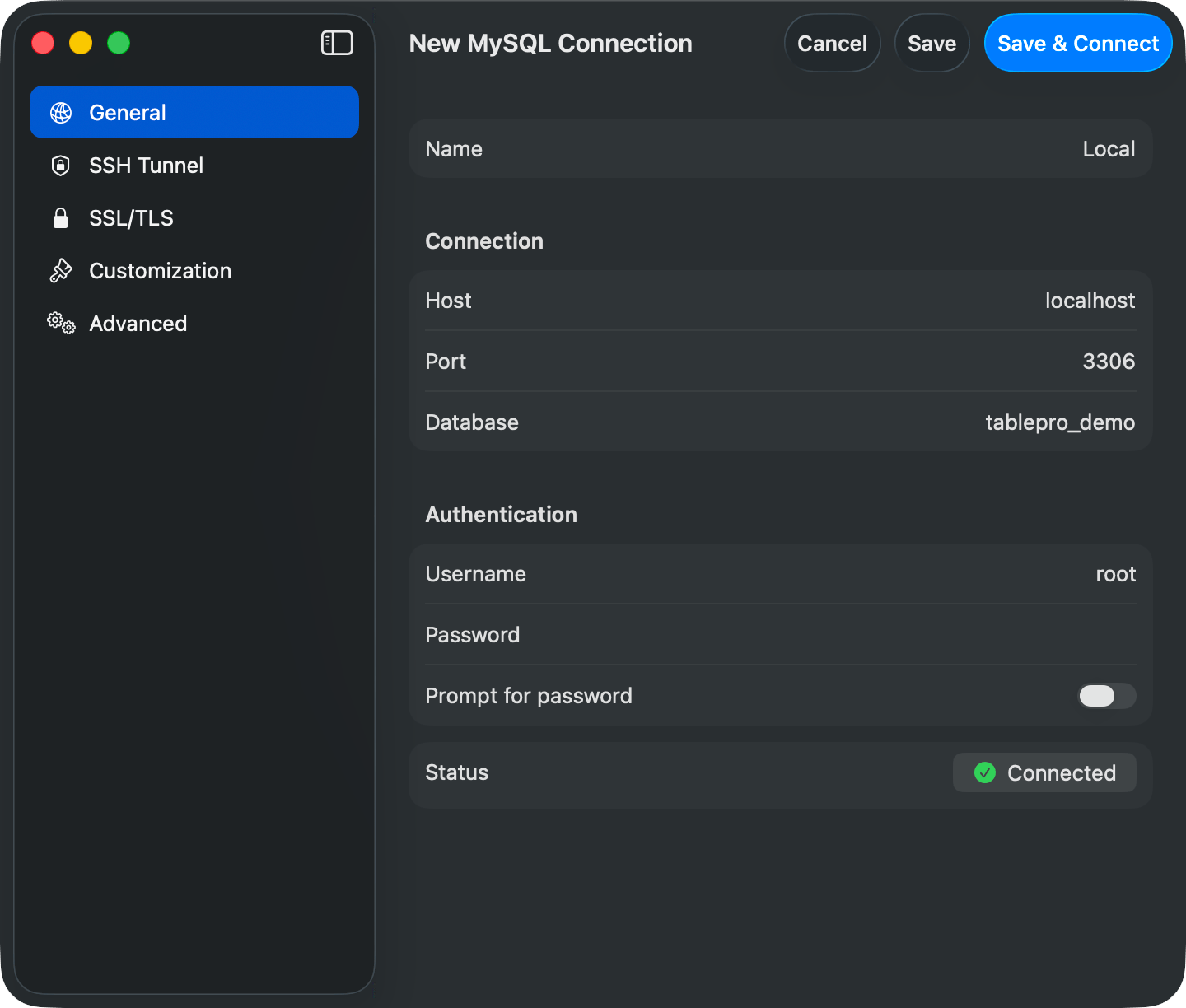
Test Connection succeeded
Step 4: Run Your First Query
The main window has three panels: the sidebar (databases and tables), the SQL editor, and the data grid for results.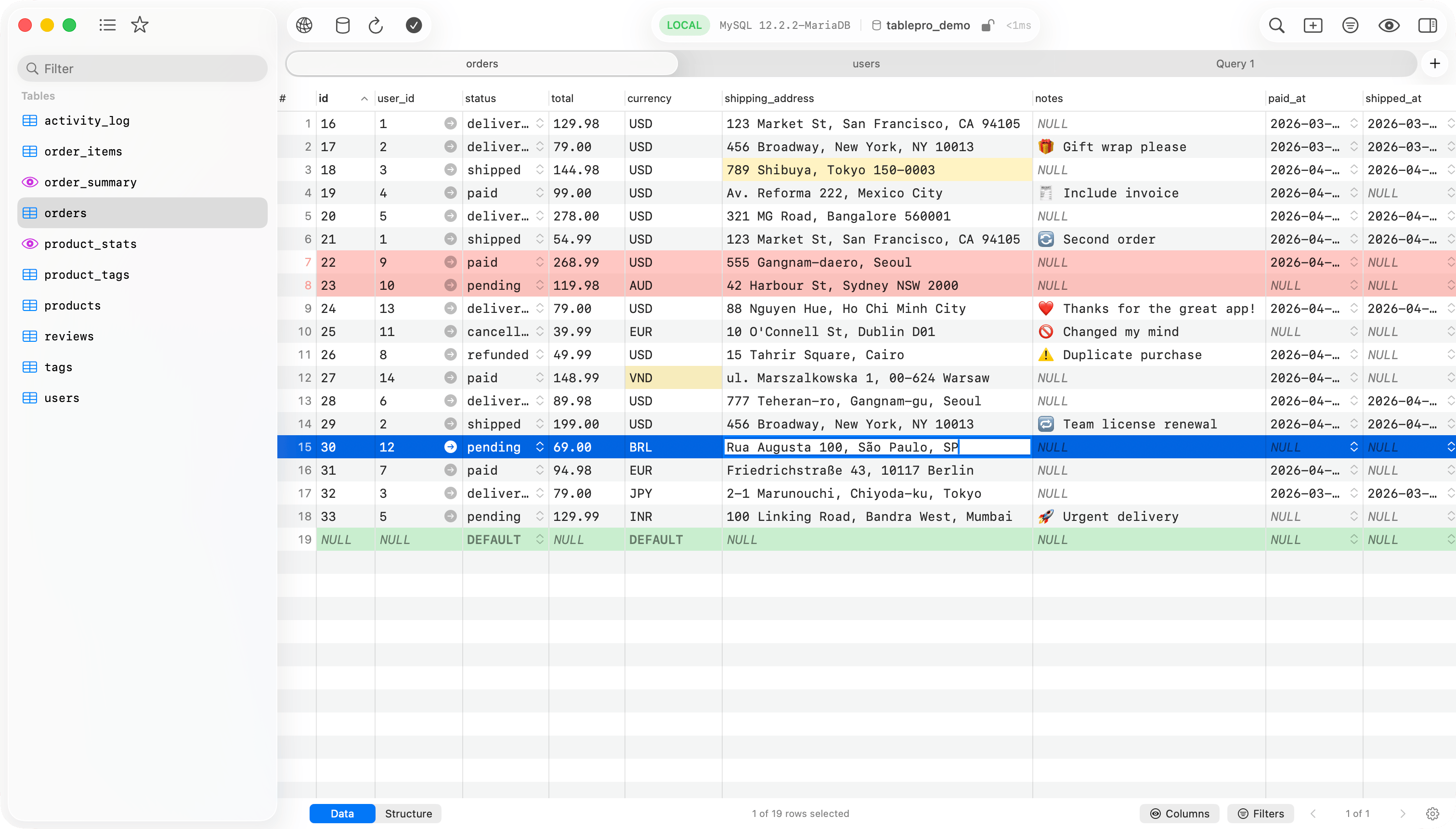
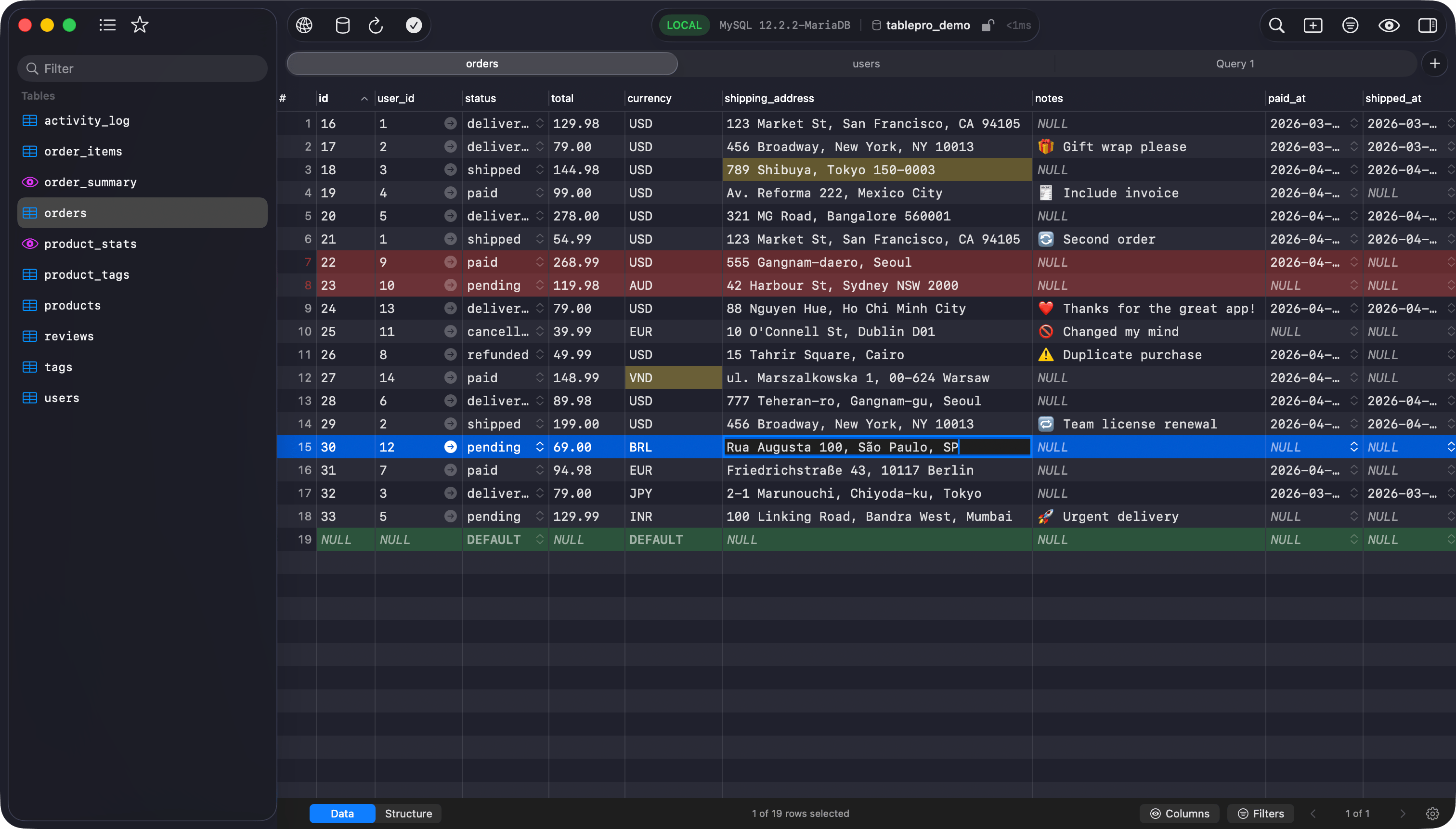
TablePro main interface
Cmd+Enter: