> ## Documentation Index
> Fetch the complete documentation index at: https://ngquct-feat-ai-sql-walkthroughs.mintlify.site/llms.txt
> Use this file to discover all available pages before exploring further.
# Installation
> Install TablePro via Homebrew or DMG on macOS 14.0+
# Installation
## System Requirements
* **macOS**: 14.0 (Sonoma) or later
* **Processor**: Apple Silicon (M1+) or Intel x86\_64
TablePro uses native Apple frameworks only. No Java, .NET, or other runtimes needed. The download is about 20 MB.
## Install via Homebrew
The fastest option:
```bash theme={null}
brew install --cask tablepro
```
To update:
```bash theme={null}
brew upgrade tablepro
```
To uninstall:
```bash theme={null}
brew uninstall tablepro
```
To also remove application data:
```bash theme={null}
brew uninstall --zap tablepro
```
## Download from GitHub Releases
1. Go to [GitHub Releases](https://github.com/TableProApp/TablePro/releases)
2. Download the DMG for your Mac. Asset names include the version, for example `TablePro-0.57.0-arm64.dmg`:
* **Apple Silicon (M1+)**: the `arm64` DMG
* **Intel**: the `x86_64` DMG
Check your architecture: **Apple menu > About This Mac**, then look for Chip (Apple Silicon) or Processor (Intel).
## Installation Steps
1. Open the DMG file (double-click)
2. Drag **TablePro** to the **Applications** folder shortcut
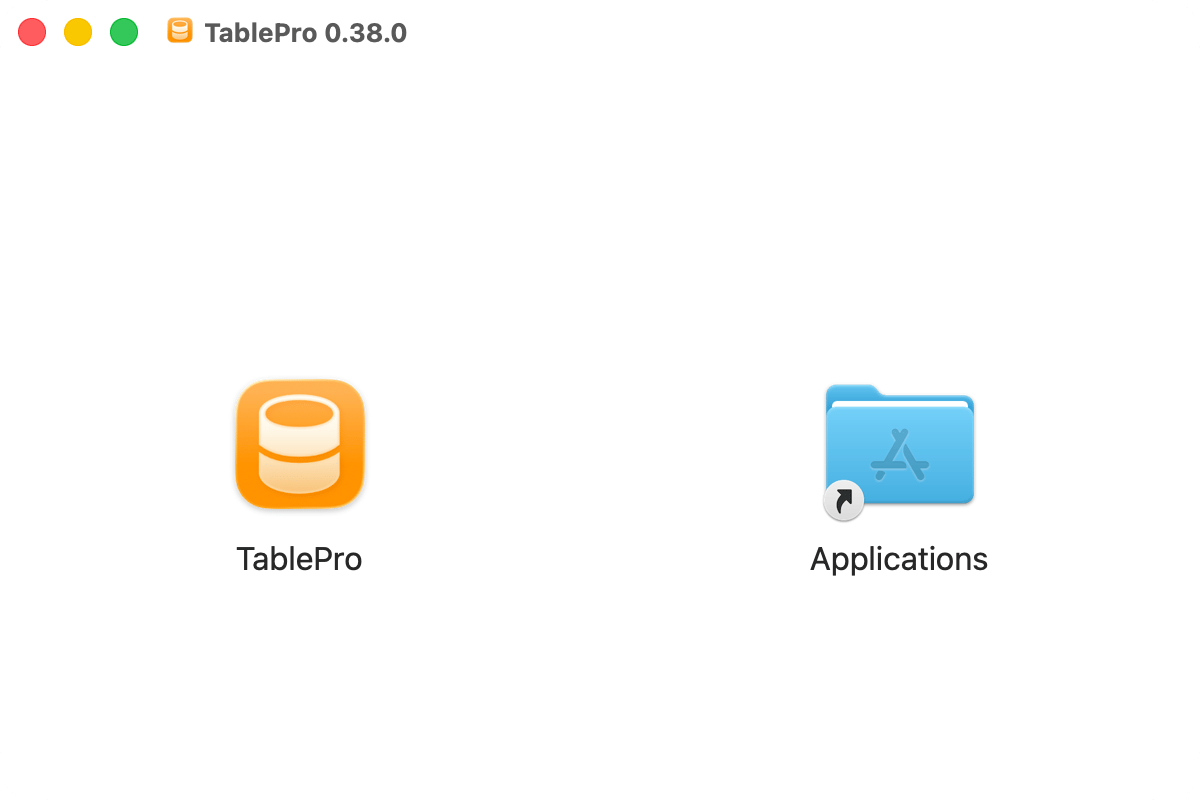
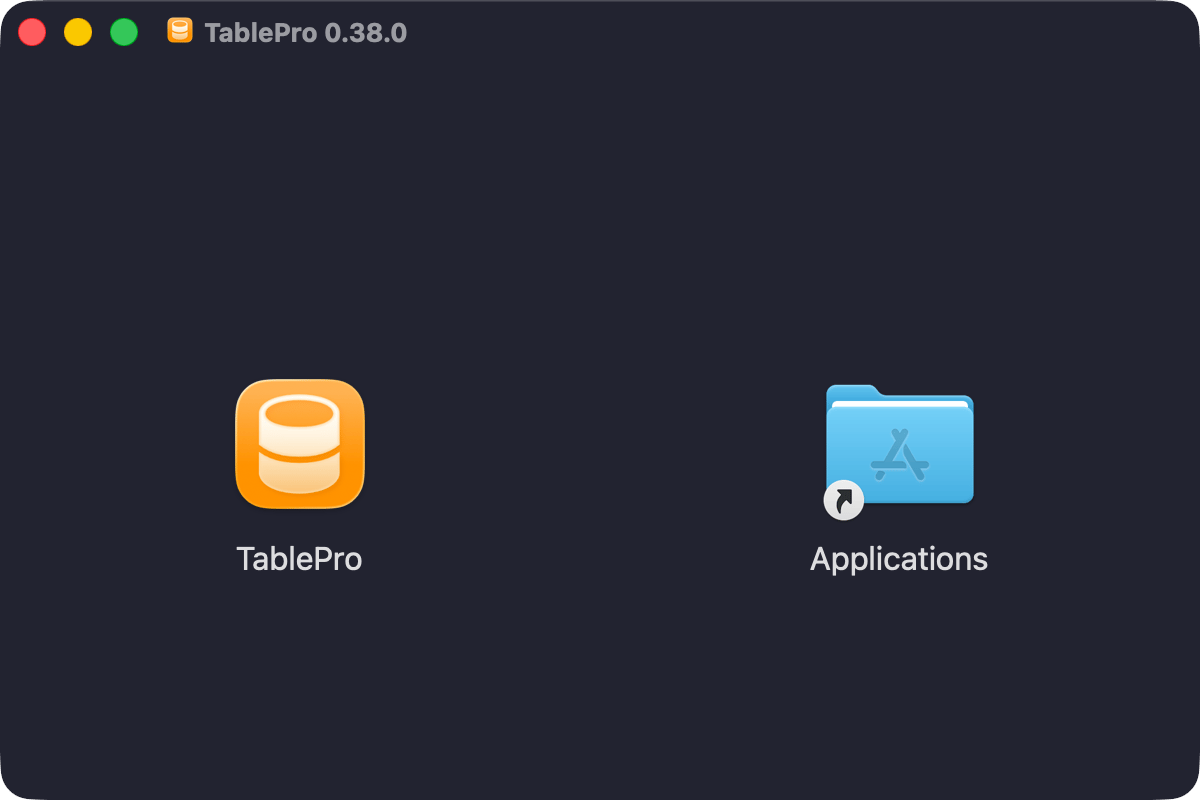 3. Eject the DMG (right-click > Eject)
4. Open **Finder > Applications** and launch **TablePro**
## Updating TablePro
TablePro checks for updates automatically via Sparkle. Check manually: **TablePro > Check for Updates...**.
Connections and settings persist across updates.
## Uninstallation
1. Quit TablePro
2. Drag **TablePro** from **Finder > Applications** to Trash
To delete local data (connections, query history, downloaded driver plugins):
```bash theme={null}
rm -rf ~/Library/Application\ Support/TablePro
rm ~/Library/Preferences/com.TablePro.plist
```
Connection passwords are stored in the macOS Keychain and are not removed by these commands. Delete them in Keychain Access by searching for `com.TablePro`. Data synced through iCloud stays in your iCloud account.
## Troubleshooting
**Crashes on launch**: Verify correct architecture, macOS 14.0+, and check Console.app for logs.
**Connection issues**: Confirm the database server is running and not blocked by a firewall.
See [Development Setup](/development/setup) for building from source.
3. Eject the DMG (right-click > Eject)
4. Open **Finder > Applications** and launch **TablePro**
## Updating TablePro
TablePro checks for updates automatically via Sparkle. Check manually: **TablePro > Check for Updates...**.
Connections and settings persist across updates.
## Uninstallation
1. Quit TablePro
2. Drag **TablePro** from **Finder > Applications** to Trash
To delete local data (connections, query history, downloaded driver plugins):
```bash theme={null}
rm -rf ~/Library/Application\ Support/TablePro
rm ~/Library/Preferences/com.TablePro.plist
```
Connection passwords are stored in the macOS Keychain and are not removed by these commands. Delete them in Keychain Access by searching for `com.TablePro`. Data synced through iCloud stays in your iCloud account.
## Troubleshooting
**Crashes on launch**: Verify correct architecture, macOS 14.0+, and check Console.app for logs.
**Connection issues**: Confirm the database server is running and not blocked by a firewall.
See [Development Setup](/development/setup) for building from source.