> ## Documentation Index
> Fetch the complete documentation index at: https://ngquct-feat-ai-sql-walkthroughs.mintlify.site/llms.txt
> Use this file to discover all available pages before exploring further.
# Cell and Row Viewers
> View and edit JSON, PHP serialized, and binary cell values, set per-column display formats, and inspect whole rows in the sidebar.
# Cell and Row Viewers
Structured cell values open in dedicated viewers: JSON, PHP serialized data, and binary blobs. A per-column **Display As** format controls how a column renders and which viewer opens. The row details inspector shows every field of the selected row with the same editors.
## Display As formats
Right-click a column header and pick **Display As**. The submenu lists the formats that fit the column type, with a checkmark on the active one.
| Format | Column types | Effect |
| ----------------------------- | ------------ | ------------------------------------------------------------------ |
| Raw Value | all | Clears the override, shows the stored value |
| UUID | binary, text | Renders 16 raw bytes or a 32-digit hex string as a hyphenated UUID |
| Unix Timestamp (seconds) | integer | Renders the number as a formatted date |
| Unix Timestamp (milliseconds) | integer | Same, treating the number as milliseconds |
| JSON | text | Opens the cell in the JSON viewer |
| PHP Serialized | text | Opens the cell in the PHP serialized viewer |
Formats are display only: they never change the stored value. Overrides persist per column, scoped to the connection and table.
TablePro also auto-detects two cases: `BINARY(16)` columns with id-like names and `CHAR(32)`/`CHAR(36)` columns named `uuid` or `guid` render as UUIDs, and integer columns named `*_at`, `*_time`, `*_timestamp`, `created`, `updated`, or `modified` render as dates when sample values fall in a plausible range. A manual Display As choice always wins over detection.
## JSON viewer
* **JSON-typed column**: click the chevron in the cell. Double-click or `Enter` edits the value inline instead.
* **Text column holding JSON**: set **Display As > JSON**, then double-click or `Enter`.
The viewer opens as a popover anchored to the cell, with two modes:
* **Text**: syntax-highlighted JSON, pretty-printed. Editable when the cell is editable.
* **Tree**: collapsible tree with a search field. Read-only navigation.
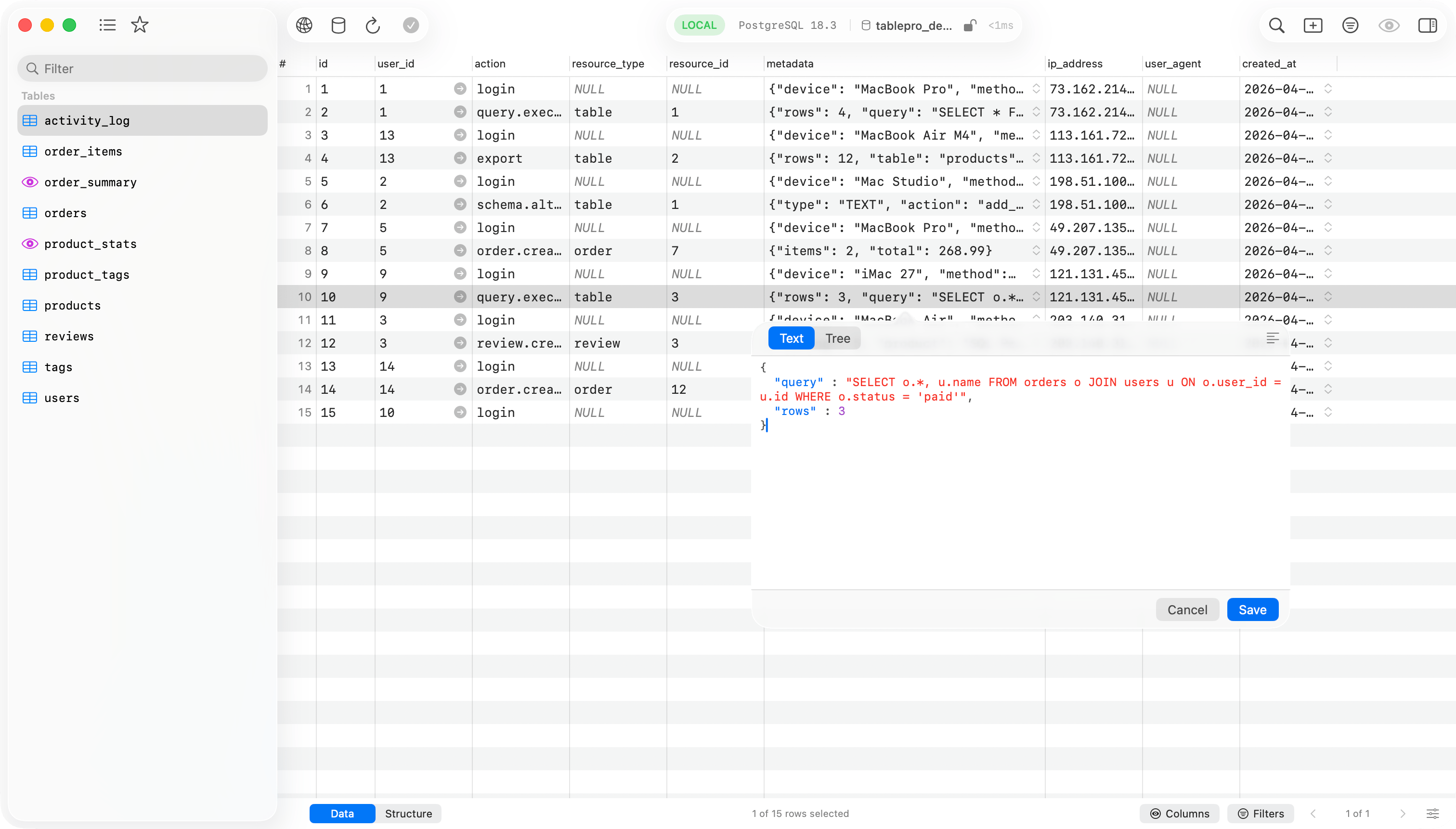
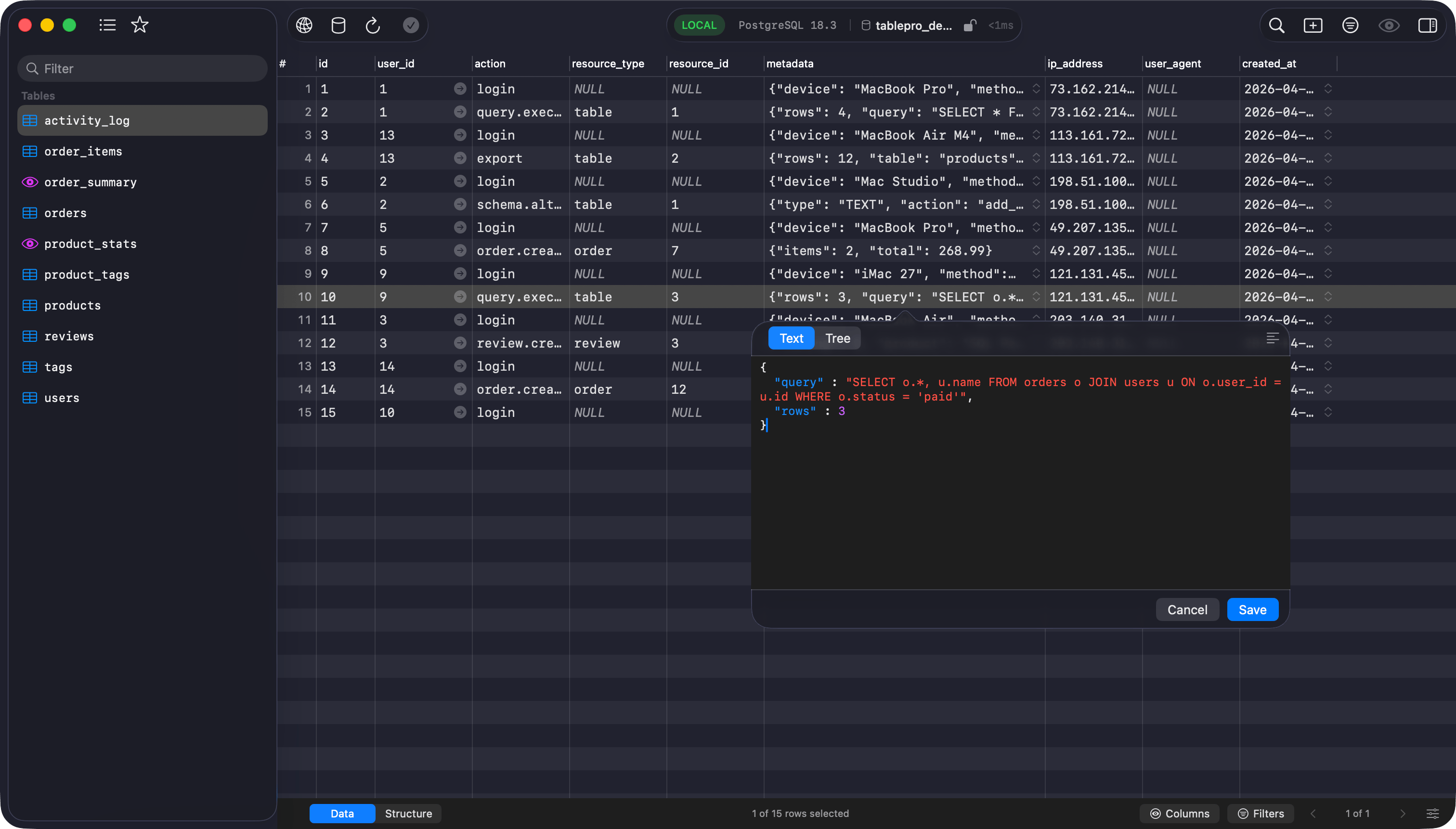 Both modes keep your original key order and exact number values, including integers larger than JavaScript can represent. Pretty-printing caps at 500 KB; larger values show as stored. Tree mode handles documents up to 100 KB and 5,000 nodes; beyond that it shows a "JSON Too Large" placeholder and you read the value in Text mode.
The mode you switch to becomes the default for the next open. The same preference lives in Settings (`Cmd+,`) > Editor > **JSON Viewer** > **Default view**.
Click the pop-out button in the toolbar to detach the viewer into its own resizable window. The window supports fullscreen.
### Editing
Opening a value and seeing it pretty-printed is not an edit. The row is marked changed only when you alter the content, so browsing JSONB row by row stays clean. **Save** commits a compact value, with key order and numbers preserved, through the standard [change tracking](/features/change-tracking) flow. If the text is not valid JSON, the viewer asks before saving.
## PHP serialized viewer
Set **Display As > PHP Serialized** on a text column, then double-click or `Enter`. The viewer is read-only: PHP serialized values round-trip through PHP itself, so TablePro does not write them back.
* **Tree**: collapsible tree with search. Nodes show type badges (`str`, `int`, `arr`, `obj`, `ser`, `ref`). Protected object members show a `protected` badge; private members show `private (ClassName)`. Custom-serialized classes (the `C:` token) appear as a single opaque leaf; references (`r:`/`R:`) show as `→ #N` and are not followed.
* **Raw**: the original serialized string with text selection.
Values above 5 MB are not parsed; the tree shows a placeholder and Raw mode still works. Trees cap at 5,000 nodes and 256 nesting levels, with a truncation marker beyond that. The toolbar pop-out button opens the value in its own window.
## Blob and hex
Blob cells render in the grid as compact hex (`0x48656C...`, first 64 bytes). Click the chevron or double-click to open the hex popover:
* A classic hex dump (offset, byte columns, ASCII), capped at 10 KB.
* On editable tables, an editable hex field below it. It accepts spaced or continuous hex, with or without a `0x` prefix. Invalid hex disables **Save**; values over 10 KB open read-only.
## Row details inspector
**View > Toggle Inspector** (`Cmd+Option+I`) opens the right sidebar. Select a row and every field appears with an editor matched to its content:
* JSON columns, and text values that parse as JSON, get the JSON editor. No Display As step needed.
* PHP serialized values are auto-detected the same way and get the read-only tree.
* Blob columns get the hex editor; enum, set, and boolean columns get pickers.
Both modes keep your original key order and exact number values, including integers larger than JavaScript can represent. Pretty-printing caps at 500 KB; larger values show as stored. Tree mode handles documents up to 100 KB and 5,000 nodes; beyond that it shows a "JSON Too Large" placeholder and you read the value in Text mode.
The mode you switch to becomes the default for the next open. The same preference lives in Settings (`Cmd+,`) > Editor > **JSON Viewer** > **Default view**.
Click the pop-out button in the toolbar to detach the viewer into its own resizable window. The window supports fullscreen.
### Editing
Opening a value and seeing it pretty-printed is not an edit. The row is marked changed only when you alter the content, so browsing JSONB row by row stays clean. **Save** commits a compact value, with key order and numbers preserved, through the standard [change tracking](/features/change-tracking) flow. If the text is not valid JSON, the viewer asks before saving.
## PHP serialized viewer
Set **Display As > PHP Serialized** on a text column, then double-click or `Enter`. The viewer is read-only: PHP serialized values round-trip through PHP itself, so TablePro does not write them back.
* **Tree**: collapsible tree with search. Nodes show type badges (`str`, `int`, `arr`, `obj`, `ser`, `ref`). Protected object members show a `protected` badge; private members show `private (ClassName)`. Custom-serialized classes (the `C:` token) appear as a single opaque leaf; references (`r:`/`R:`) show as `→ #N` and are not followed.
* **Raw**: the original serialized string with text selection.
Values above 5 MB are not parsed; the tree shows a placeholder and Raw mode still works. Trees cap at 5,000 nodes and 256 nesting levels, with a truncation marker beyond that. The toolbar pop-out button opens the value in its own window.
## Blob and hex
Blob cells render in the grid as compact hex (`0x48656C...`, first 64 bytes). Click the chevron or double-click to open the hex popover:
* A classic hex dump (offset, byte columns, ASCII), capped at 10 KB.
* On editable tables, an editable hex field below it. It accepts spaced or continuous hex, with or without a `0x` prefix. Invalid hex disables **Save**; values over 10 KB open read-only.
## Row details inspector
**View > Toggle Inspector** (`Cmd+Option+I`) opens the right sidebar. Select a row and every field appears with an editor matched to its content:
* JSON columns, and text values that parse as JSON, get the JSON editor. No Display As step needed.
* PHP serialized values are auto-detected the same way and get the read-only tree.
* Blob columns get the hex editor; enum, set, and boolean columns get pickers.
 JSON and PHP fields have buttons to expand inside the sidebar or pop out to a window. Hover over an editable field for a menu that sets NULL, the column default, an empty value, or a SQL function. With no row selected, the inspector shows table info instead.
For whole-row JSON across a result set, switch the results pane to its JSON view mode (Data / Structure / JSON).
JSON and PHP fields have buttons to expand inside the sidebar or pop out to a window. Hover over an editable field for a menu that sets NULL, the column default, an empty value, or a SQL function. With no row selected, the inspector shows table info instead.
For whole-row JSON across a result set, switch the results pane to its JSON view mode (Data / Structure / JSON).