> ## Documentation Index
> Fetch the complete documentation index at: https://ngquct-feat-ai-sql-walkthroughs.mintlify.site/llms.txt
> Use this file to discover all available pages before exploring further.
# Connection Sharing
> Export connections to a file, share links, import from other apps, and resolve passwords from secret managers
# Connection Sharing
Export connections to a `.tablepro` file and share with your team. Passwords stay in your Keychain unless you make an encrypted export. Sections tagged Starter or Team need a [license](/features/licensing) of that tier.
## Export
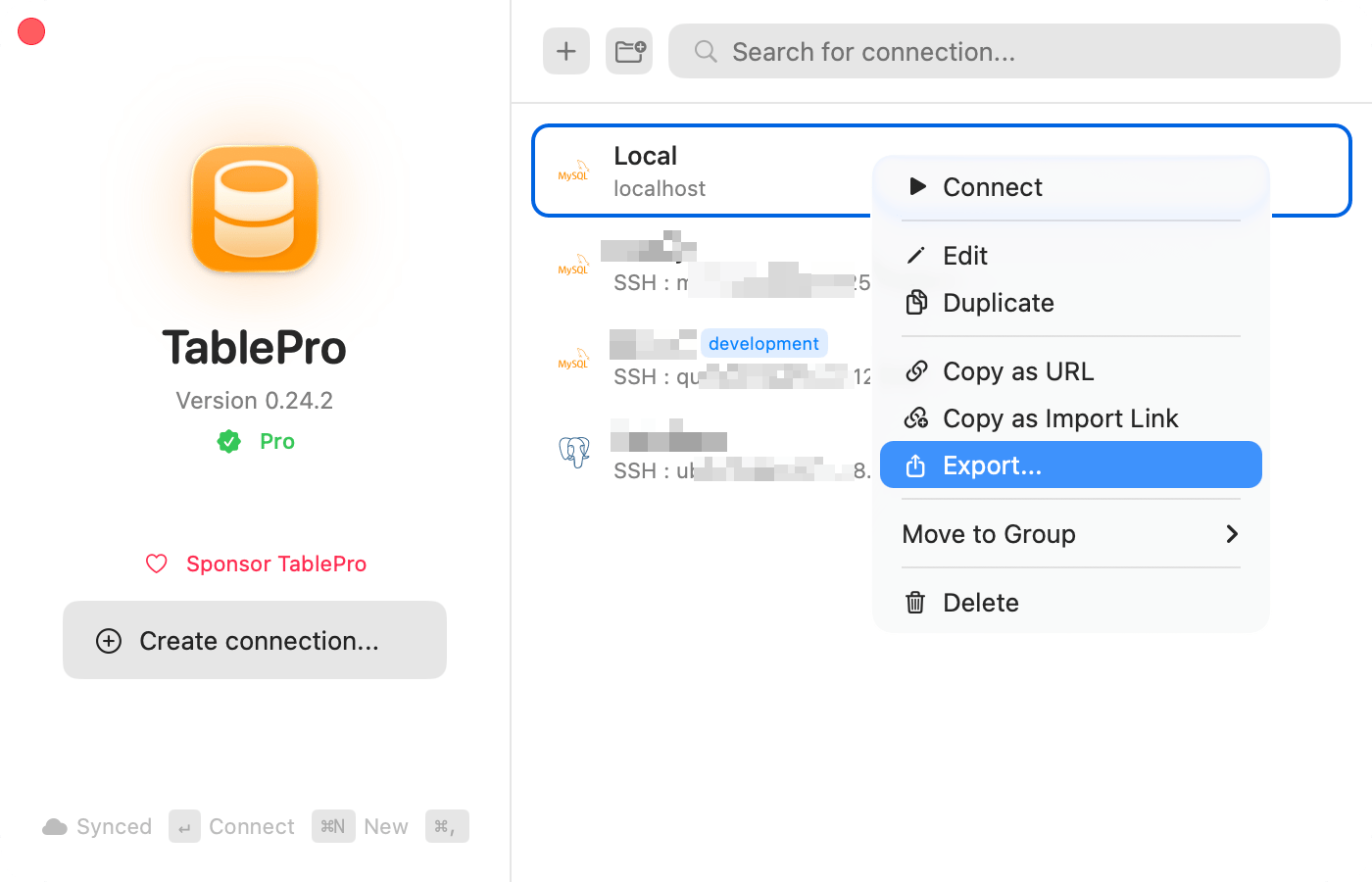
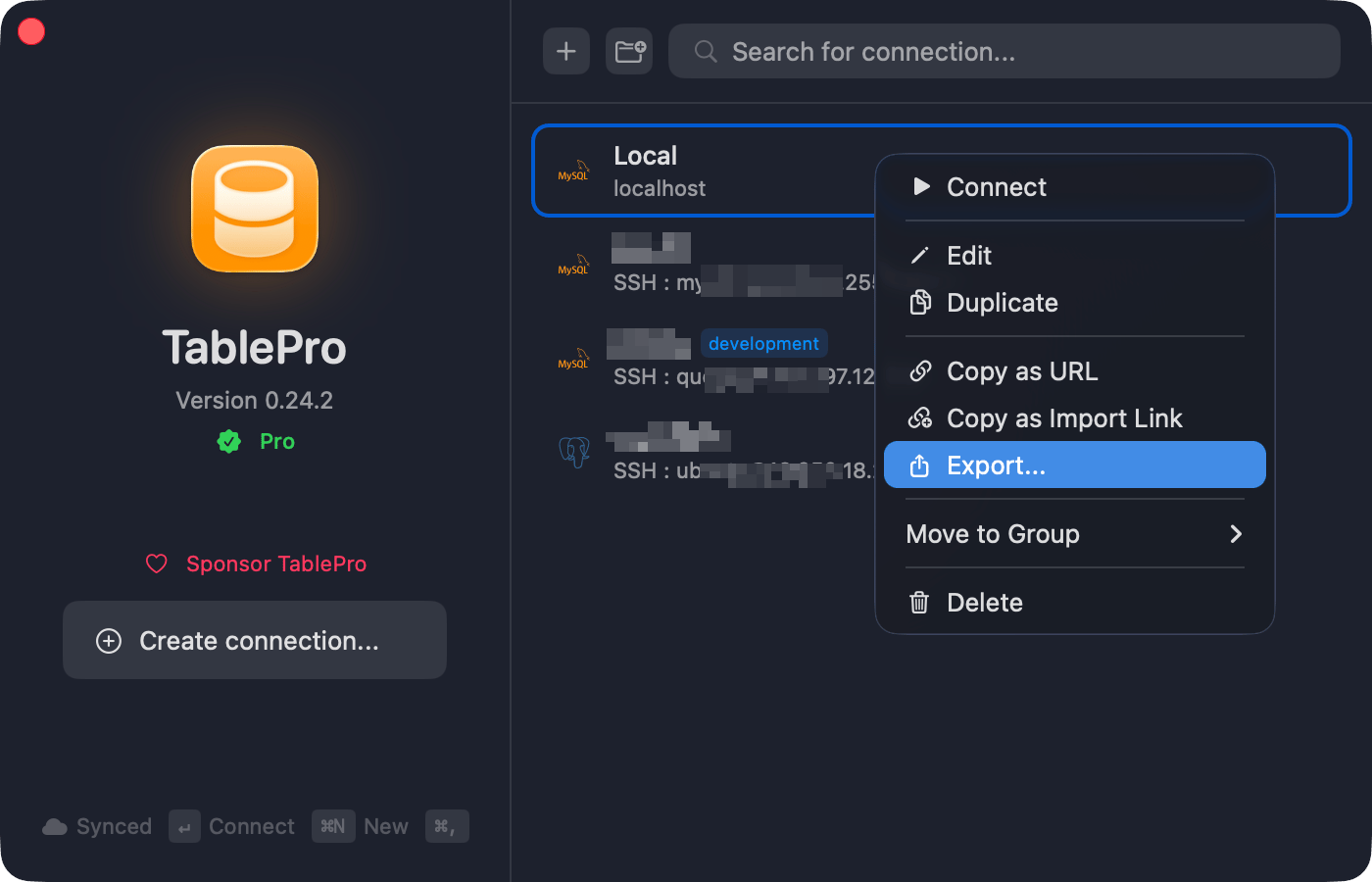
Right-click a connection > **Share** > **Export to File...**. Select multiple first to export together. **File** > **Export Connections...** exports all.
Exported: name, host, port, database, username, type, SSH/SSL config, color, tags, group, Safe Mode level. Not exported: passwords, key passphrases, TOTP secrets.
The Share menu also has **Copy Connection String** (a database URL) and **Copy as JSON** (one connection as JSON).
 ## Import
* **File** > **Import Connections...**
* Right-click empty area > **Import Connections...**
* Double-click a `.tablepro` file
* Drag onto TablePro
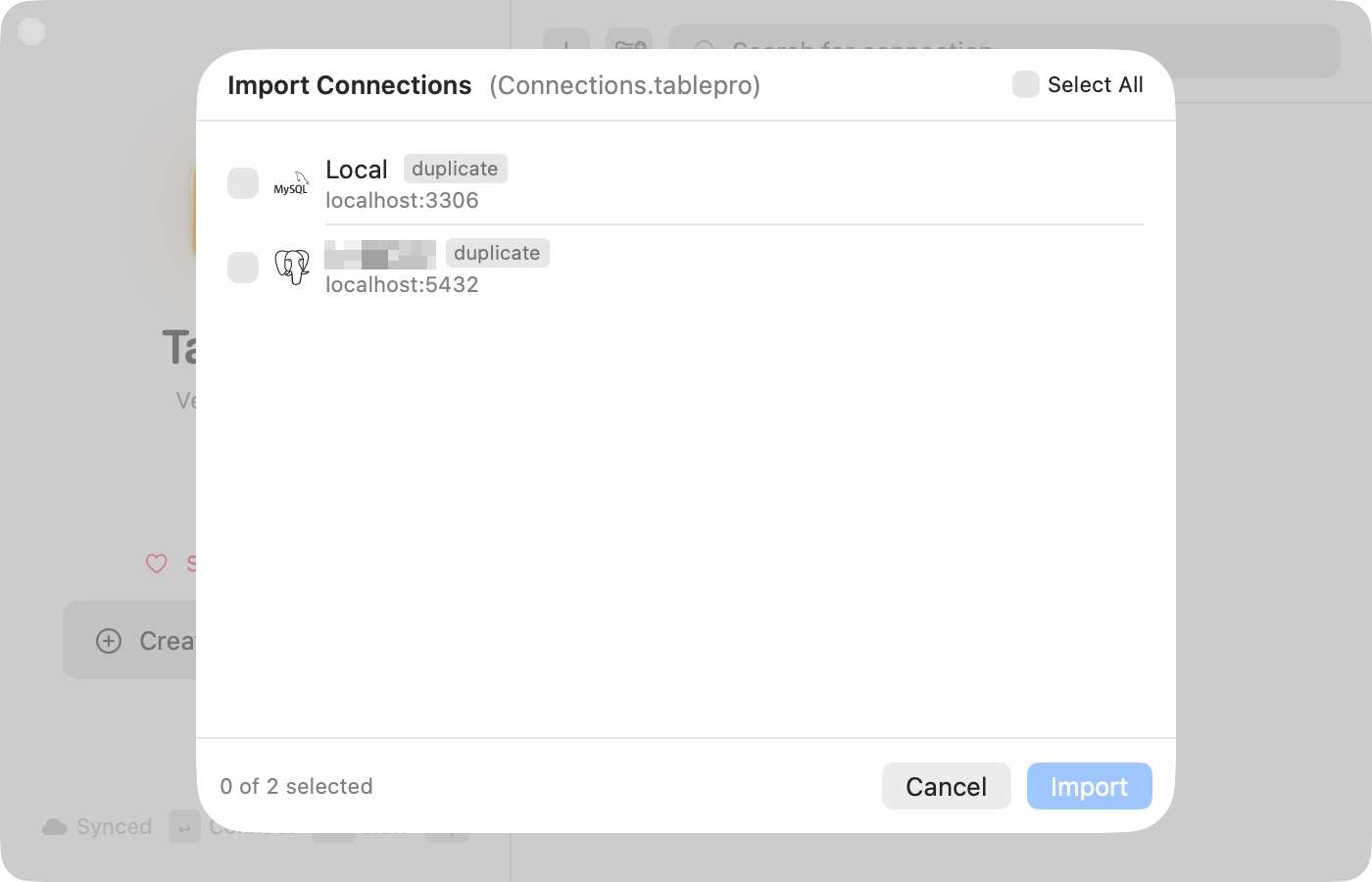
A preview shows each connection before importing:
| Badge | Meaning |
| --------------- | ------------------------- |
| Green checkmark | Ready |
| Yellow triangle | SSH key or cert not found |
| "duplicate" tag | Already exists |
Duplicates match by host, port, database, and username, and start unchecked. Check to import, then pick **As Copy**, **Replace**, or **Skip**.
## Import
* **File** > **Import Connections...**
* Right-click empty area > **Import Connections...**
* Double-click a `.tablepro` file
* Drag onto TablePro
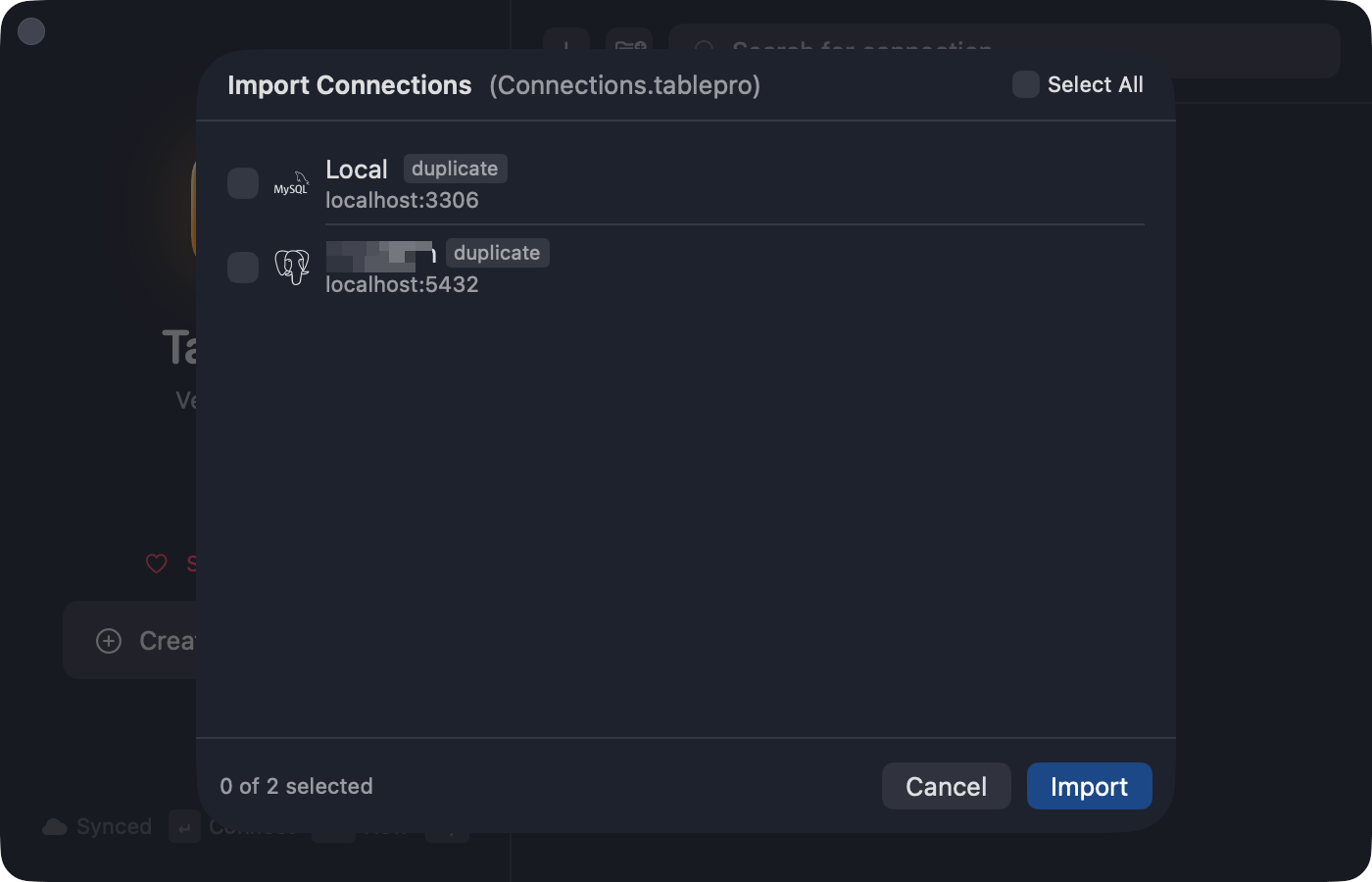
A preview shows each connection before importing:
| Badge | Meaning |
| --------------- | ------------------------- |
| Green checkmark | Ready |
| Yellow triangle | SSH key or cert not found |
| "duplicate" tag | Already exists |
Duplicates match by host, port, database, and username, and start unchecked. Check to import, then pick **As Copy**, **Replace**, or **Skip**.
 ## On iPhone
TablePro for iPhone reads and writes the same `.tablepro` file. Import: tap the **more** menu (•••) above the connection list > **Import Connections**, or open a `.tablepro` file from Files or AirDrop. Export: **more** menu > **Export Connections** shares through the system share sheet. Passwords are left out unless you turn on **Include passwords** and set a passphrase.
## Import from Other Apps
1. **File** > **Import from Other App...**
2. Pick the source app. Navicat asks for the `.ncx` file you exported from Navicat.
3. Review the list, uncheck what you don't want, resolve duplicates, click **Import**.
## On iPhone
TablePro for iPhone reads and writes the same `.tablepro` file. Import: tap the **more** menu (•••) above the connection list > **Import Connections**, or open a `.tablepro` file from Files or AirDrop. Export: **more** menu > **Export Connections** shares through the system share sheet. Passwords are left out unless you turn on **Include passwords** and set a passphrase.
## Import from Other Apps
1. **File** > **Import from Other App...**
2. Pick the source app. Navicat asks for the `.ncx` file you exported from Navicat.
3. Review the list, uncheck what you don't want, resolve duplicates, click **Import**.
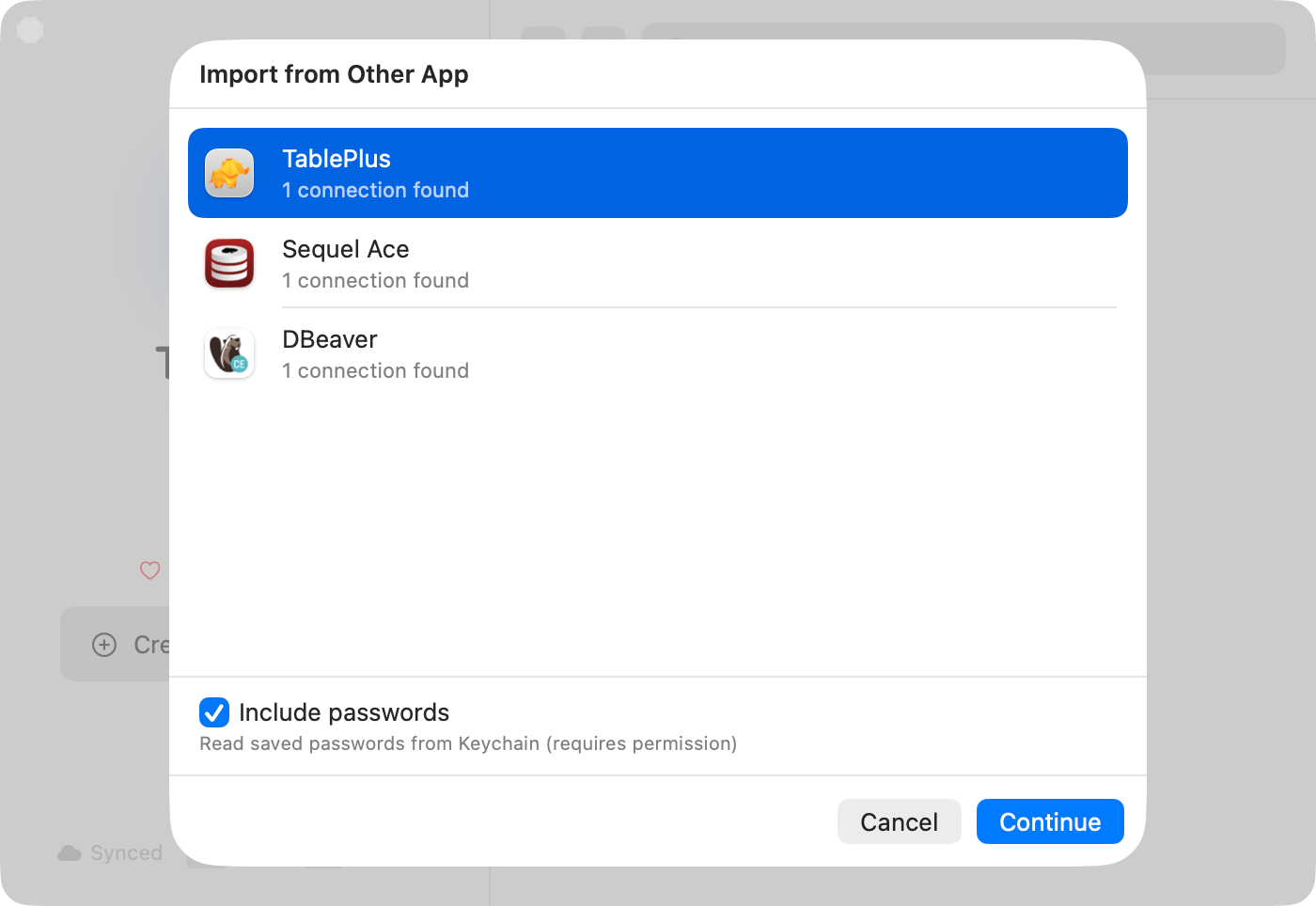
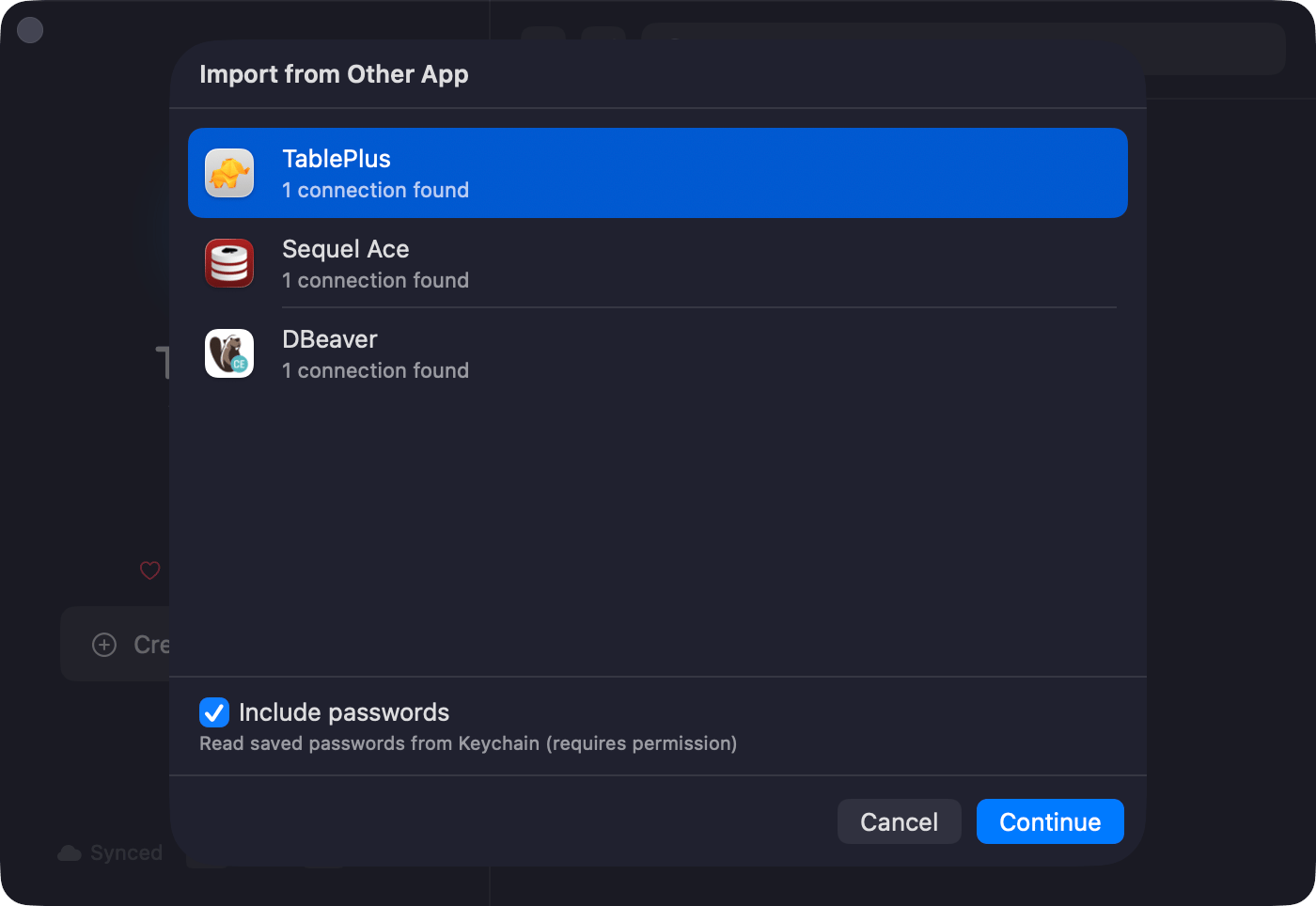 | App | Databases | Passwords |
| ---------------- | --------------------------------------------------------------- | --------------------------------- |
| TablePlus | MySQL, PostgreSQL, MongoDB, SQLite, Redis, and more | From Keychain |
| Sequel Ace | MySQL | From Keychain |
| DBeaver | MySQL, PostgreSQL, SQLite, SQL Server, Oracle, and more | Decrypted from config file |
| DataGrip | MySQL, PostgreSQL, SQLite, SQL Server, Oracle, and more | From Keychain or `c.kdbx` |
| Beekeeper Studio | MySQL, PostgreSQL, SQLite, SQL Server, Oracle, and more | Decrypted from its `app.db` store |
| Navicat | MySQL, MariaDB, PostgreSQL, SQLite, SQL Server, Oracle, MongoDB | Decrypted from `.ncx` file |
Groups and folders carry over. The source app doesn't need to be running. DBeaver is read from its data folder, so every edition works. DataGrip imports from its recent projects with SSH tunnel and SSL settings; master-password-protected connections can't be read. Beekeeper Studio imports include encrypted passwords and SSH bastion hosts. Navicat needs an export first: **File** > **Export Connections** in Navicat, with **Export Password** on to bring passwords across.
## Share via Link
Right-click a connection > **Share** > **Copy TablePro Link**. Produces a `tablepro://import?...` URL with host, port, type, and username (no password). The recipient opens the link, reviews the prefilled form, adds their own password, and saves.
```
tablepro://import?name=Staging&host=db.example.com&port=5432&type=PostgreSQL&username=admin
```
TablePro also opens `tablepro://connect/` URLs that launch a saved connection. There is no menu item for this form; build the URL from the connection's UUID. See [URL Scheme](/external-api/url-scheme#open-a-connection).
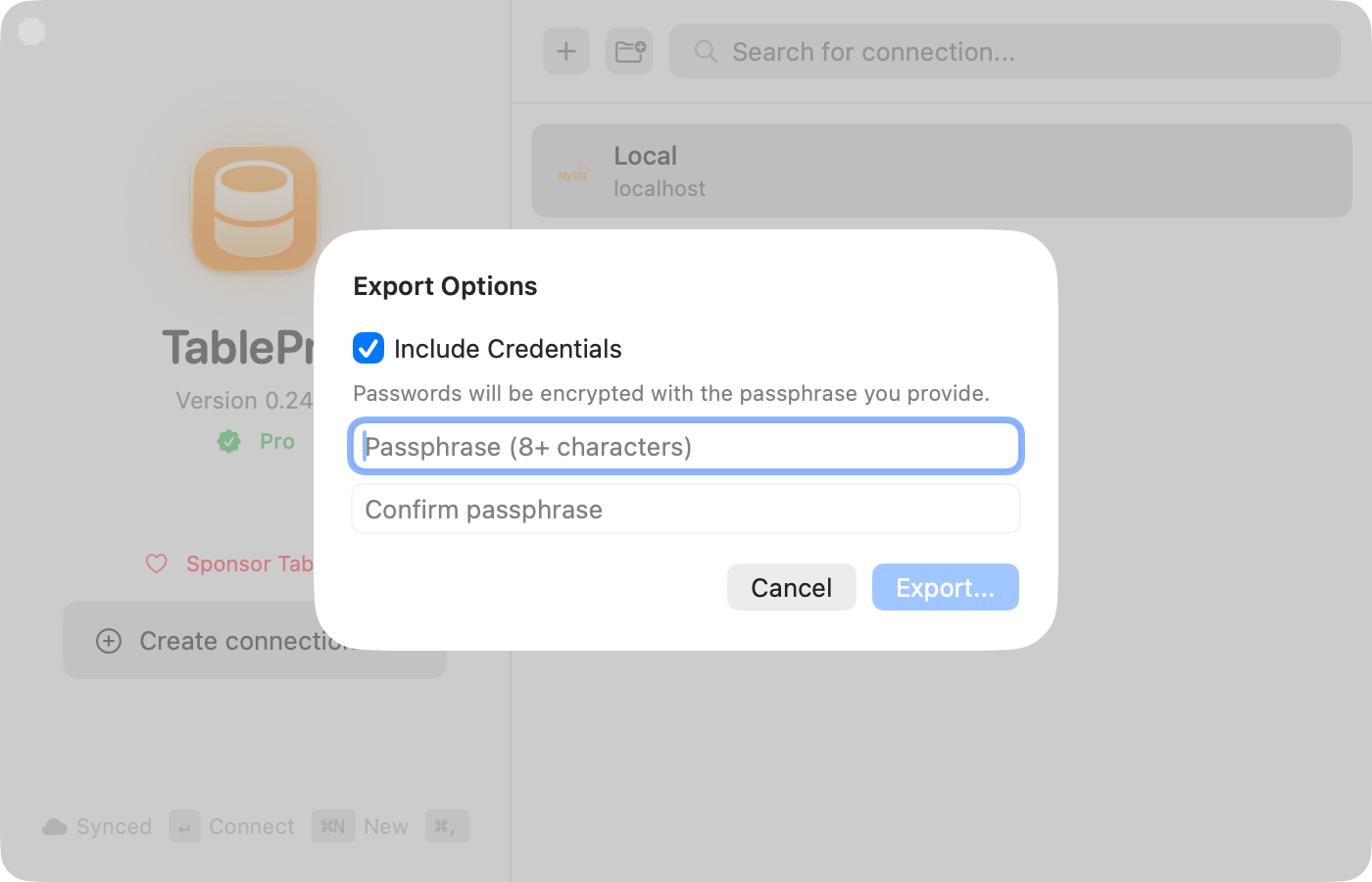
## Encrypted Export Starter
Include passwords in the export, protected by a passphrase.
1. Right-click > **Share** > **Export to File...**
2. Turn on **Include Credentials**
3. Enter a passphrase (8+ characters), confirm
4. **Export...**
Credentials are encrypted with AES-256-GCM; the key derives from your passphrase via PBKDF2 (600,000 iterations). Importing prompts for the passphrase.
| App | Databases | Passwords |
| ---------------- | --------------------------------------------------------------- | --------------------------------- |
| TablePlus | MySQL, PostgreSQL, MongoDB, SQLite, Redis, and more | From Keychain |
| Sequel Ace | MySQL | From Keychain |
| DBeaver | MySQL, PostgreSQL, SQLite, SQL Server, Oracle, and more | Decrypted from config file |
| DataGrip | MySQL, PostgreSQL, SQLite, SQL Server, Oracle, and more | From Keychain or `c.kdbx` |
| Beekeeper Studio | MySQL, PostgreSQL, SQLite, SQL Server, Oracle, and more | Decrypted from its `app.db` store |
| Navicat | MySQL, MariaDB, PostgreSQL, SQLite, SQL Server, Oracle, MongoDB | Decrypted from `.ncx` file |
Groups and folders carry over. The source app doesn't need to be running. DBeaver is read from its data folder, so every edition works. DataGrip imports from its recent projects with SSH tunnel and SSL settings; master-password-protected connections can't be read. Beekeeper Studio imports include encrypted passwords and SSH bastion hosts. Navicat needs an export first: **File** > **Export Connections** in Navicat, with **Export Password** on to bring passwords across.
## Share via Link
Right-click a connection > **Share** > **Copy TablePro Link**. Produces a `tablepro://import?...` URL with host, port, type, and username (no password). The recipient opens the link, reviews the prefilled form, adds their own password, and saves.
```
tablepro://import?name=Staging&host=db.example.com&port=5432&type=PostgreSQL&username=admin
```
TablePro also opens `tablepro://connect/` URLs that launch a saved connection. There is no menu item for this form; build the URL from the connection's UUID. See [URL Scheme](/external-api/url-scheme#open-a-connection).
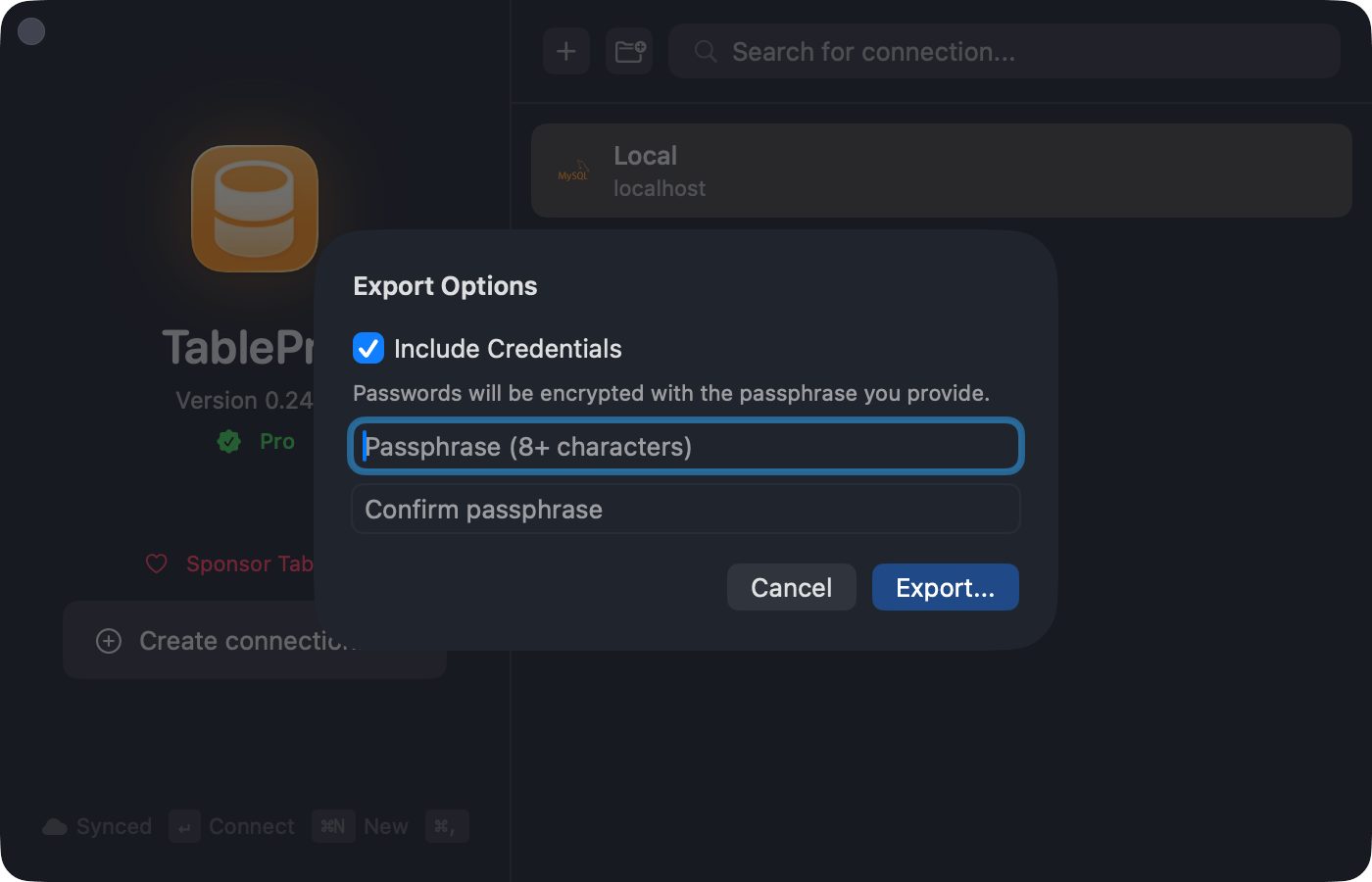
## Encrypted Export Starter
Include passwords in the export, protected by a passphrase.
1. Right-click > **Share** > **Export to File...**
2. Turn on **Include Credentials**
3. Enter a passphrase (8+ characters), confirm
4. **Export...**
Credentials are encrypted with AES-256-GCM; the key derives from your passphrase via PBKDF2 (600,000 iterations). Importing prompts for the passphrase.
 ## Linked Folders Starter
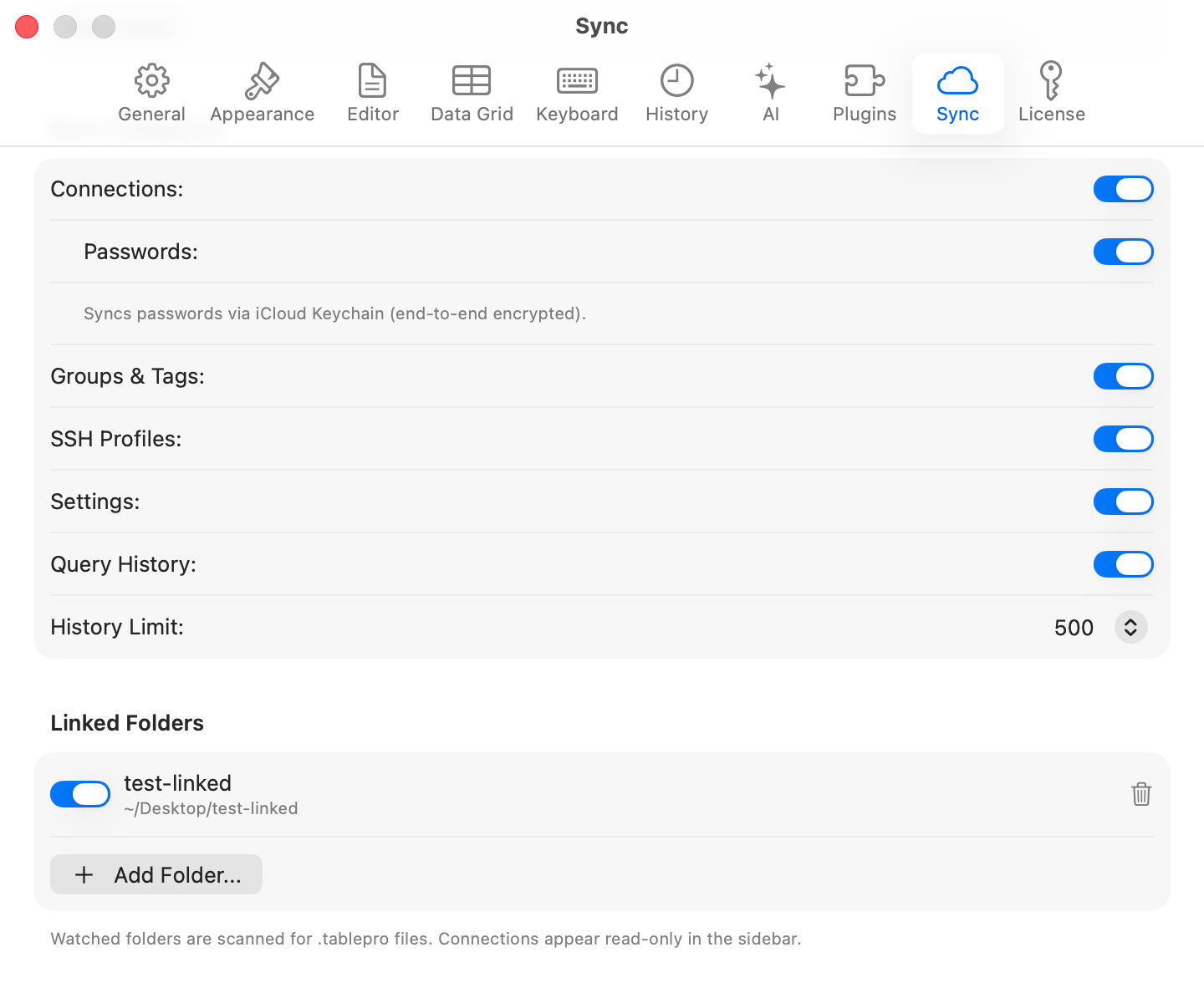
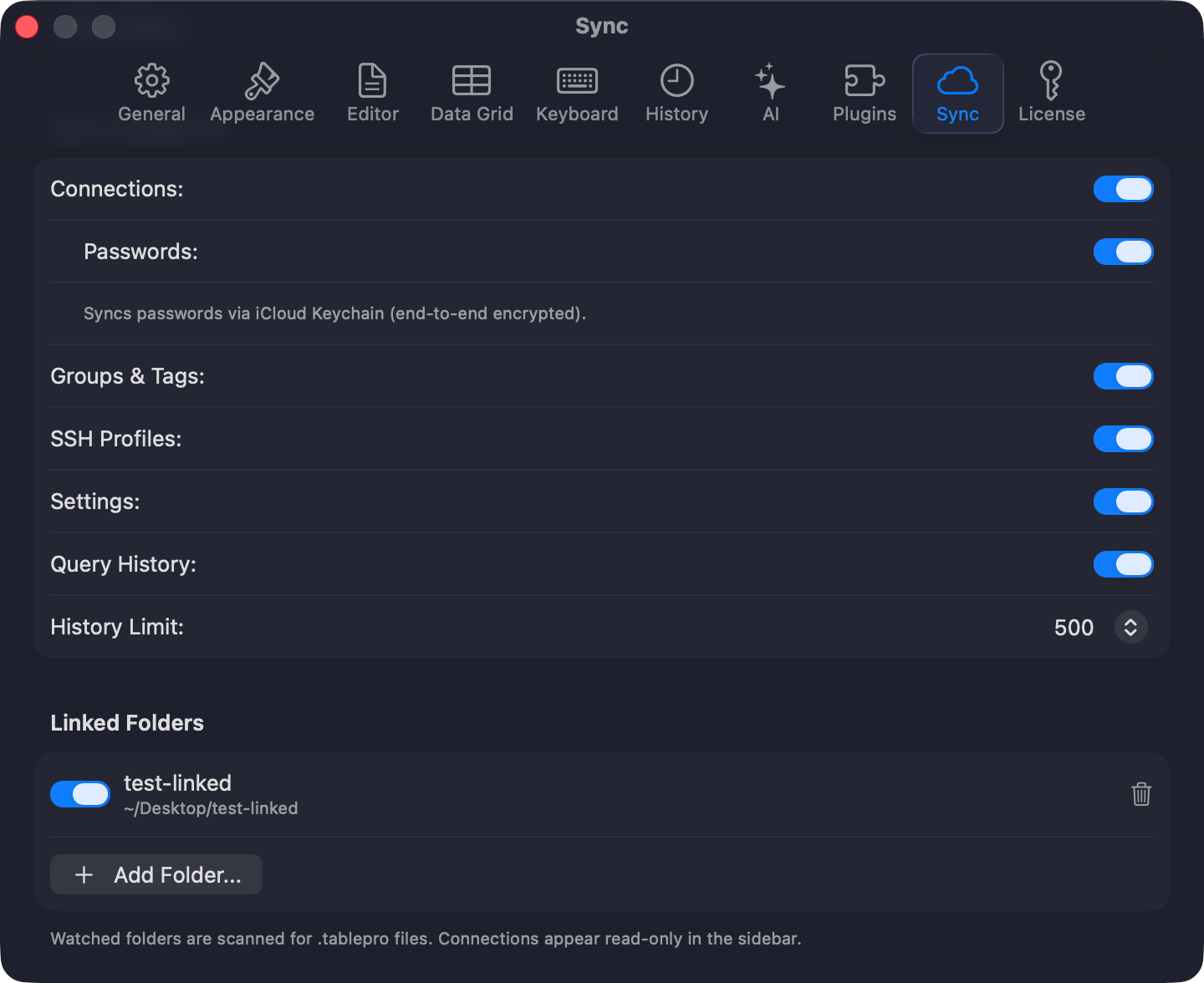
Watch a shared directory for `.tablepro` files. Connections appear read-only in the sidebar. Each person enters their own password. Works with Git repos, Dropbox, network drives.
**Settings** (`Cmd+,`) > **Account** > **Linked Folders** > **Add Folder...**
## Linked Folders Starter
Watch a shared directory for `.tablepro` files. Connections appear read-only in the sidebar. Each person enters their own password. Works with Git repos, Dropbox, network drives.
**Settings** (`Cmd+,`) > **Account** > **Linked Folders** > **Add Folder...**
 ## Team Catalog Team
Right-click a connection > **Share** > **Publish to Team Catalog...** writes each selected connection as its own `.tablepro` file into a shared folder. The first time, TablePro asks for the folder: a Git repo, Dropbox folder, or network drive your team shares. Republishing overwrites the file. Passwords, passphrases, and TOTP secrets are never written. Teammates add the same folder as a [Linked Folder](#linked-folders) and get the connections read-only. Part of the [Team plan](/features/team).
## Environment Variables Starter
Use `$VAR` and `${VAR}` in `.tablepro` files. Resolved from TablePro's process environment at connect time, so set variables with `launchctl setenv NAME value` or launch TablePro from a terminal.
```json theme={null}
{
"host": "${DB_HOST}",
"username": "$DB_USER"
}
```
## Password Sources
Connections in `~/Library/Application Support/TablePro/connections.json` can declare where their password comes from instead of storing it in the Keychain. Useful when a script provisions connections, for example one Docker database per git worktree. The password resolves at connect time and is not synced to iCloud, since the path, variable, or command is specific to one Mac.
Add a `passwordSource` object to the connection:
```json theme={null}
{ "passwordSource": { "kind": "file", "path": "~/.config/tablepro/secrets/feature-x.pw" } }
{ "passwordSource": { "kind": "env", "variable": "STAGING_DB_PASSWORD" } }
{ "passwordSource": { "kind": "command", "shell": "op read op://vault/feature-x/password" } }
```
* `file`: reads the password from the file. A trailing newline is trimmed. Use `chmod 600` to keep it private.
* `env`: reads the named environment variable. Apps launched from the Dock don't inherit shell exports; use `launchctl setenv` or launch from a terminal.
* `command`: runs the command through `/bin/bash` and reads stdout. A trailing newline is trimmed, a non-zero exit fails the connection, and the command has a 30 second timeout.
When `passwordSource` is set it replaces the Keychain lookup. If resolution fails, the connection reports the error instead of falling back to the Keychain.
### Secret managers
1Password, HashiCorp Vault, and AWS Secrets Manager have dedicated kinds. They build the CLI call for you and quote every argument, so a reference can't break out into the shell.
```json theme={null}
{ "passwordSource": { "kind": "onePassword", "reference": "op://vault/feature-x/password" } }
{ "passwordSource": { "kind": "vault", "path": "secret/data/staging/db", "field": "password" } }
{ "passwordSource": { "kind": "awsSecretsManager", "secretId": "prod/db", "jsonKey": "password" } }
```
* `onePassword`: runs `op read` on the reference. Sign in to the 1Password CLI first (`op signin`).
* `vault`: runs `vault kv get` for one field at a path. Set `VAULT_ADDR` and `VAULT_TOKEN` in TablePro's environment.
* `awsSecretsManager`: runs `aws secretsmanager get-secret-value`. Set `jsonKey` to pull one field out of a JSON secret; leave it off to use the whole value.
The CLI tools must be on `PATH`; TablePro also looks in `/usr/local/bin` and `/opt/homebrew/bin`. Same 30 second timeout as `command`.
## File Format
JSON. The envelope needs `formatVersion`, `exportedAt`, and `appVersion`; each connection needs `name`, `host`, `port`, `database`, `username`, and `type` (empty strings are fine where a value doesn't apply).
```json theme={null}
{
"formatVersion": 1,
"exportedAt": "2026-07-14T09:00:00Z",
"appVersion": "0.57.0",
"connections": [
{
"name": "Production",
"host": "db.example.com",
"port": 3306,
"database": "app",
"username": "deploy",
"type": "MySQL",
"tagName": "production"
}
],
"groups": [{ "name": "Backend", "color": "Blue" }],
"tags": [{ "name": "production", "color": "Red" }]
}
```
Groups and tags match by name; missing ones are created. Groups export flat: name and color only, no hierarchy. Paths use `~/` for portability.
## Sharing vs iCloud Sync
| | Sharing | iCloud Sync |
| ------------- | ------------------------------------------ | ------------------------ |
| **For** | Team | Your Macs |
| **How** | Files, links | CloudKit |
| **Passwords** | Per-user (encrypted export with a license) | Optional sync |
| **Requires** | Nothing (Starter for extras) | Starter license + iCloud |
## Team Catalog Team
Right-click a connection > **Share** > **Publish to Team Catalog...** writes each selected connection as its own `.tablepro` file into a shared folder. The first time, TablePro asks for the folder: a Git repo, Dropbox folder, or network drive your team shares. Republishing overwrites the file. Passwords, passphrases, and TOTP secrets are never written. Teammates add the same folder as a [Linked Folder](#linked-folders) and get the connections read-only. Part of the [Team plan](/features/team).
## Environment Variables Starter
Use `$VAR` and `${VAR}` in `.tablepro` files. Resolved from TablePro's process environment at connect time, so set variables with `launchctl setenv NAME value` or launch TablePro from a terminal.
```json theme={null}
{
"host": "${DB_HOST}",
"username": "$DB_USER"
}
```
## Password Sources
Connections in `~/Library/Application Support/TablePro/connections.json` can declare where their password comes from instead of storing it in the Keychain. Useful when a script provisions connections, for example one Docker database per git worktree. The password resolves at connect time and is not synced to iCloud, since the path, variable, or command is specific to one Mac.
Add a `passwordSource` object to the connection:
```json theme={null}
{ "passwordSource": { "kind": "file", "path": "~/.config/tablepro/secrets/feature-x.pw" } }
{ "passwordSource": { "kind": "env", "variable": "STAGING_DB_PASSWORD" } }
{ "passwordSource": { "kind": "command", "shell": "op read op://vault/feature-x/password" } }
```
* `file`: reads the password from the file. A trailing newline is trimmed. Use `chmod 600` to keep it private.
* `env`: reads the named environment variable. Apps launched from the Dock don't inherit shell exports; use `launchctl setenv` or launch from a terminal.
* `command`: runs the command through `/bin/bash` and reads stdout. A trailing newline is trimmed, a non-zero exit fails the connection, and the command has a 30 second timeout.
When `passwordSource` is set it replaces the Keychain lookup. If resolution fails, the connection reports the error instead of falling back to the Keychain.
### Secret managers
1Password, HashiCorp Vault, and AWS Secrets Manager have dedicated kinds. They build the CLI call for you and quote every argument, so a reference can't break out into the shell.
```json theme={null}
{ "passwordSource": { "kind": "onePassword", "reference": "op://vault/feature-x/password" } }
{ "passwordSource": { "kind": "vault", "path": "secret/data/staging/db", "field": "password" } }
{ "passwordSource": { "kind": "awsSecretsManager", "secretId": "prod/db", "jsonKey": "password" } }
```
* `onePassword`: runs `op read` on the reference. Sign in to the 1Password CLI first (`op signin`).
* `vault`: runs `vault kv get` for one field at a path. Set `VAULT_ADDR` and `VAULT_TOKEN` in TablePro's environment.
* `awsSecretsManager`: runs `aws secretsmanager get-secret-value`. Set `jsonKey` to pull one field out of a JSON secret; leave it off to use the whole value.
The CLI tools must be on `PATH`; TablePro also looks in `/usr/local/bin` and `/opt/homebrew/bin`. Same 30 second timeout as `command`.
## File Format
JSON. The envelope needs `formatVersion`, `exportedAt`, and `appVersion`; each connection needs `name`, `host`, `port`, `database`, `username`, and `type` (empty strings are fine where a value doesn't apply).
```json theme={null}
{
"formatVersion": 1,
"exportedAt": "2026-07-14T09:00:00Z",
"appVersion": "0.57.0",
"connections": [
{
"name": "Production",
"host": "db.example.com",
"port": 3306,
"database": "app",
"username": "deploy",
"type": "MySQL",
"tagName": "production"
}
],
"groups": [{ "name": "Backend", "color": "Blue" }],
"tags": [{ "name": "production", "color": "Red" }]
}
```
Groups and tags match by name; missing ones are created. Groups export flat: name and color only, no hierarchy. Paths use `~/` for portability.
## Sharing vs iCloud Sync
| | Sharing | iCloud Sync |
| ------------- | ------------------------------------------ | ------------------------ |
| **For** | Team | Your Macs |
| **How** | Files, links | CloudKit |
| **Passwords** | Per-user (encrypted export with a license) | Optional sync |
| **Requires** | Nothing (Starter for extras) | Starter license + iCloud |