> ## Documentation Index
> Fetch the complete documentation index at: https://ngquct-feat-ai-sql-walkthroughs.mintlify.site/llms.txt
> Use this file to discover all available pages before exploring further.
# SSH Tunneling
> Route database connections through an SSH tunnel to reach servers in private networks
# SSH Tunneling
TablePro tunnels database connections through SSH using a built-in libssh2 client. No `ssh` binary or external setup is required. The tunnel opens a local forwarding port in the 60000-65000 range (this is why macOS may show a network permission prompt), sends a keep-alive every 30 seconds, and reconnects automatically if the tunnel dies.
The **SSH Tunnel** pane appears only for databases whose driver supports it. Databases reached through a file path or an HTTP API (SQLite, LibSQL, Beancount, BigQuery, Cloudflare D1, DynamoDB, Elasticsearch, Snowflake) do not show it.
```mermaid theme={null}
flowchart LR
TablePro["TablePro
localhost:60000"] -->|"Encrypted tunnel"| SSH["SSH server"] -->|"Internal network"| DB["Database
db:3306"]
```
## Setting Up
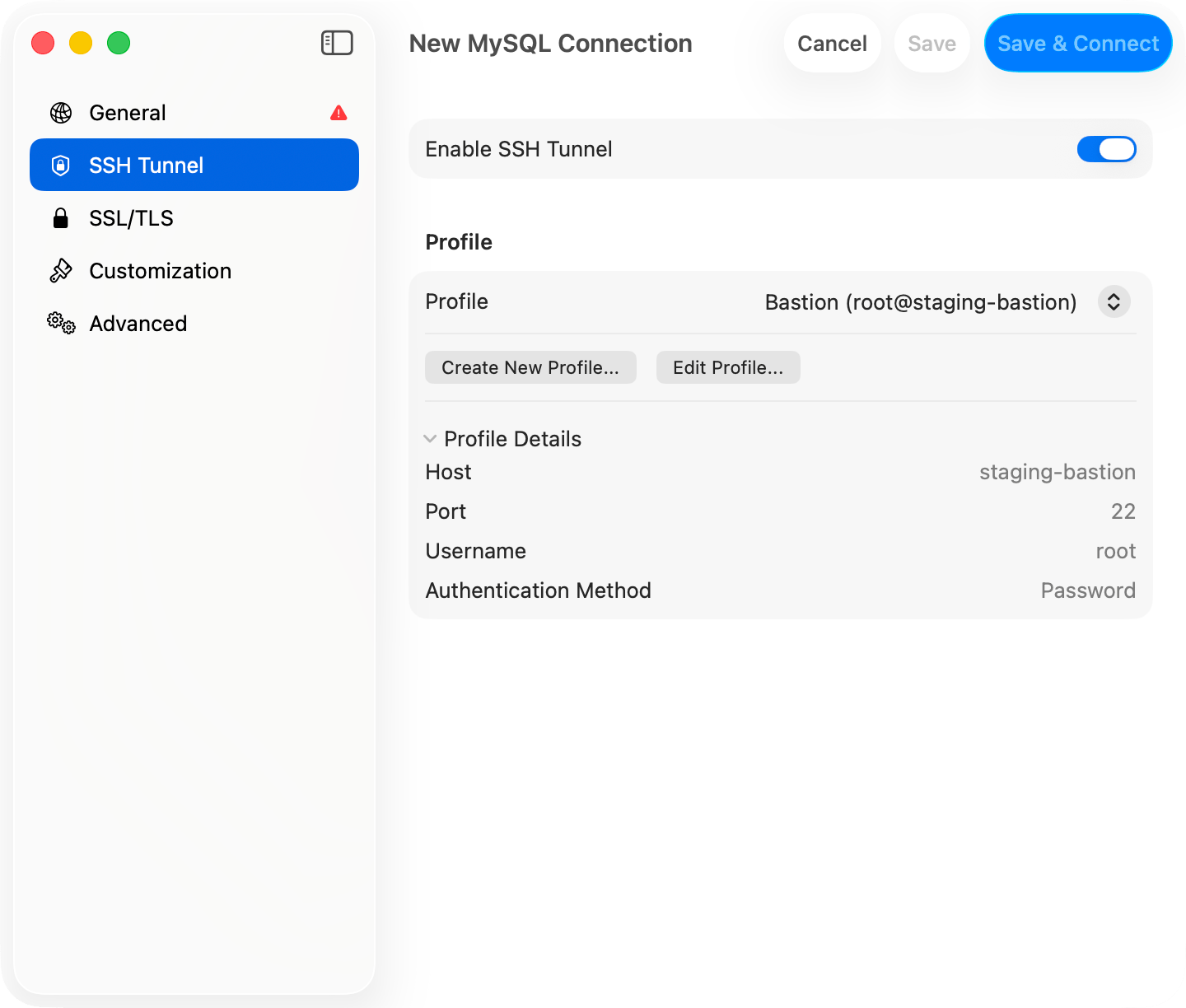
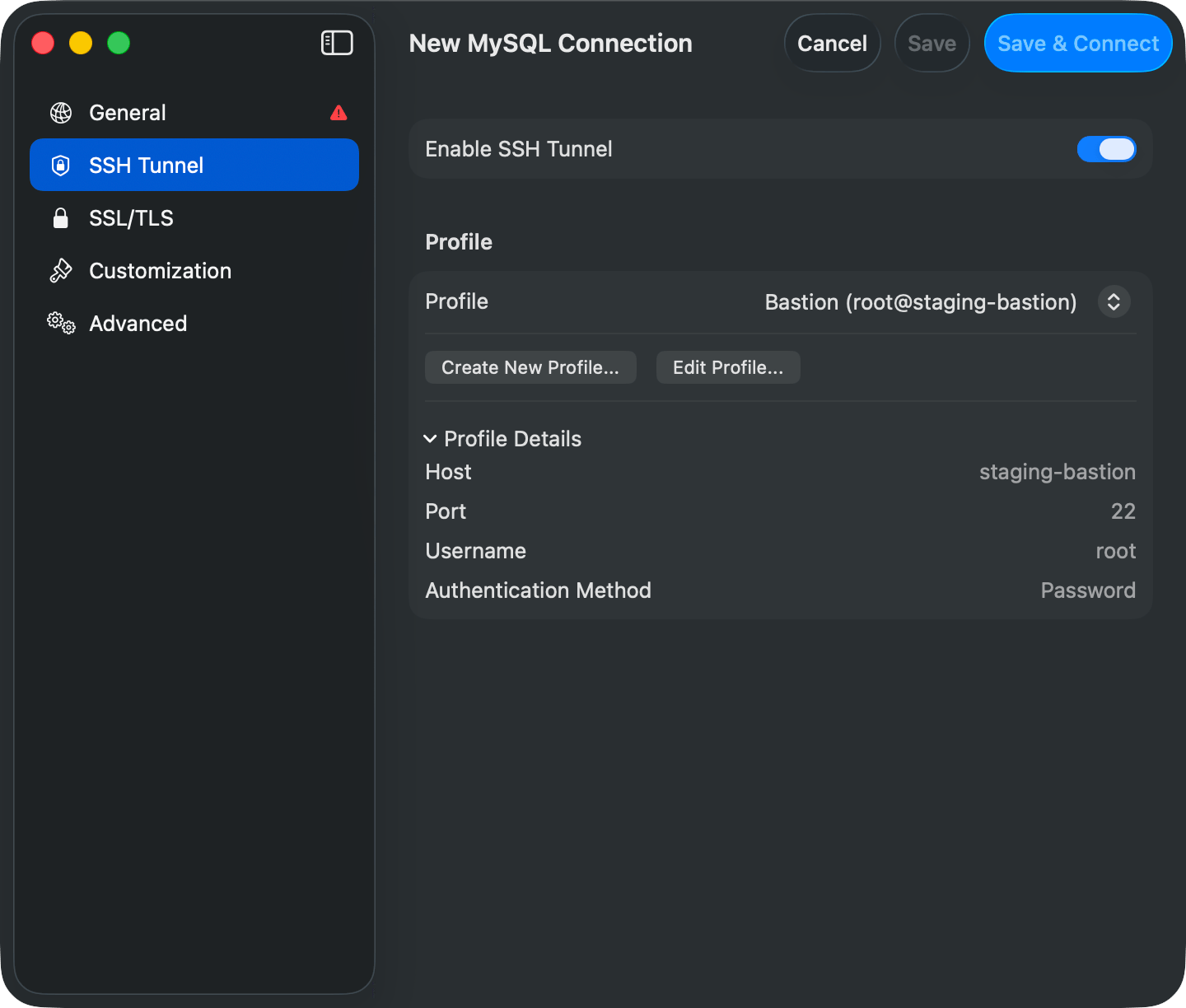
1. Open the connection form and switch to the **SSH Tunnel** pane
2. Toggle **Enable SSH Tunnel** on
3. Fill in **SSH Host**, **SSH Port** (default 22), and **SSH User**
4. Pick an authentication method
5. Back on **General**, click **Test Connection**
 The database **Host** and **Port** on the General pane are what the SSH server uses to reach the database, not what your Mac would use. Use `localhost` if the database runs on the SSH server itself, or the internal hostname (for example an RDS endpoint reached through a bastion) if it runs elsewhere. If the database listens on a Unix socket rather than a port, use [Socket Path](#forwarding-to-a-unix-socket) instead.
To reuse one SSH config across several connections, save it as a profile with **Save Current as Profile...** or pick one from the **Profile** picker. See [SSH Profiles](/features/ssh-profiles).
## Authentication Methods
Enter your SSH password in the **Password** field. Prefer keys for production servers.
| Field | Description |
| -------------- | ------------------------------------------------------- |
| **Key File** | Path to your private key. Click **Browse** to pick one. |
| **Passphrase** | Key passphrase, if the key is encrypted |
Leave **Key File** empty to auto-detect the key from `~/.ssh/config` and default key locations.
If the server also requires a keyboard-interactive step such as a 2FA code, TablePro prompts for it after the key is accepted.
Signing is delegated to an agent process; TablePro never reads the key. The **Agent Socket** picker offers:
* **SSH\_AUTH\_SOCK**: the system `SSH_AUTH_SOCK` environment variable
* **1Password**: 1Password's socket at `~/Library/Group Containers/2BUA8C4S2C.com.1password/t/agent.sock`
* **Custom Path**: any other agent socket path (Secretive, custom `ssh-agent`)
If the server also requires a keyboard-interactive step such as a 2FA code, TablePro prompts for it after the agent authenticates.
Sends your password through SSH's keyboard-interactive challenge-response. Use this when the server rejects plain password auth, which is common with PAM-based setups.
Sends no password or key. Use this when the server authenticates the connection itself, such as a [Tailscale SSH](https://tailscale.com/kb/1193/tailscale-ssh) host or a bastion configured for passwordless access. If the server still requires credentials, the connection fails with a message telling you to pick another method.
### Verification Prompts and Two-Factor Authentication
If the SSH server issues a keyboard-interactive challenge during authentication, for example a verification code from `google-authenticator` or `duo_unix`, TablePro shows the server's prompt and lets you type the response. This works with every authentication method except **None**, including a private key or SSH agent followed by a second factor (`AuthenticationMethods publickey,keyboard-interactive`).
The **Two-Factor Authentication** section lets you skip that prompt for TOTP codes:
* **None** or **Prompt at Connect**: TablePro asks for the code when the server requests it.
* **Auto Generate**: TablePro computes the code from your base32 **TOTP Secret** (the key from your authenticator enrollment). Algorithm (SHA1, SHA256, SHA512), digits (6 or 8), and period (30s or 60s) are configurable; defaults match most setups.
## Host Keys
On first connection TablePro shows the server's key type and SHA-256 fingerprint (same format as `ssh-keygen -l`) and asks whether to trust it. Trusted keys are stored in `~/Library/Application Support/TablePro/known_hosts`.
If a trusted server's key changes, TablePro shows a warning with the old and new fingerprints. **Disconnect** is the default button; choose **Connect Anyway** only if you know the server was reinstalled. With jump hosts, every hop's key is verified.
## Using \~/.ssh/config
If `~/.ssh/config` has Host entries, a **Config Host** picker appears above the SSH Host field. Pick an alias and TablePro resolves `HostName`, `User`, `Port`, `IdentityFile`, `IdentityAgent`, and `ProxyJump` from the config at connect time. Values you type in the form override the config. The file is re-read whenever it changes, including `Include`d files.
The database **Host** and **Port** on the General pane are what the SSH server uses to reach the database, not what your Mac would use. Use `localhost` if the database runs on the SSH server itself, or the internal hostname (for example an RDS endpoint reached through a bastion) if it runs elsewhere. If the database listens on a Unix socket rather than a port, use [Socket Path](#forwarding-to-a-unix-socket) instead.
To reuse one SSH config across several connections, save it as a profile with **Save Current as Profile...** or pick one from the **Profile** picker. See [SSH Profiles](/features/ssh-profiles).
## Authentication Methods
Enter your SSH password in the **Password** field. Prefer keys for production servers.
| Field | Description |
| -------------- | ------------------------------------------------------- |
| **Key File** | Path to your private key. Click **Browse** to pick one. |
| **Passphrase** | Key passphrase, if the key is encrypted |
Leave **Key File** empty to auto-detect the key from `~/.ssh/config` and default key locations.
If the server also requires a keyboard-interactive step such as a 2FA code, TablePro prompts for it after the key is accepted.
Signing is delegated to an agent process; TablePro never reads the key. The **Agent Socket** picker offers:
* **SSH\_AUTH\_SOCK**: the system `SSH_AUTH_SOCK` environment variable
* **1Password**: 1Password's socket at `~/Library/Group Containers/2BUA8C4S2C.com.1password/t/agent.sock`
* **Custom Path**: any other agent socket path (Secretive, custom `ssh-agent`)
If the server also requires a keyboard-interactive step such as a 2FA code, TablePro prompts for it after the agent authenticates.
Sends your password through SSH's keyboard-interactive challenge-response. Use this when the server rejects plain password auth, which is common with PAM-based setups.
Sends no password or key. Use this when the server authenticates the connection itself, such as a [Tailscale SSH](https://tailscale.com/kb/1193/tailscale-ssh) host or a bastion configured for passwordless access. If the server still requires credentials, the connection fails with a message telling you to pick another method.
### Verification Prompts and Two-Factor Authentication
If the SSH server issues a keyboard-interactive challenge during authentication, for example a verification code from `google-authenticator` or `duo_unix`, TablePro shows the server's prompt and lets you type the response. This works with every authentication method except **None**, including a private key or SSH agent followed by a second factor (`AuthenticationMethods publickey,keyboard-interactive`).
The **Two-Factor Authentication** section lets you skip that prompt for TOTP codes:
* **None** or **Prompt at Connect**: TablePro asks for the code when the server requests it.
* **Auto Generate**: TablePro computes the code from your base32 **TOTP Secret** (the key from your authenticator enrollment). Algorithm (SHA1, SHA256, SHA512), digits (6 or 8), and period (30s or 60s) are configurable; defaults match most setups.
## Host Keys
On first connection TablePro shows the server's key type and SHA-256 fingerprint (same format as `ssh-keygen -l`) and asks whether to trust it. Trusted keys are stored in `~/Library/Application Support/TablePro/known_hosts`.
If a trusted server's key changes, TablePro shows a warning with the old and new fingerprints. **Disconnect** is the default button; choose **Connect Anyway** only if you know the server was reinstalled. With jump hosts, every hop's key is verified.
## Using \~/.ssh/config
If `~/.ssh/config` has Host entries, a **Config Host** picker appears above the SSH Host field. Pick an alias and TablePro resolves `HostName`, `User`, `Port`, `IdentityFile`, `IdentityAgent`, and `ProxyJump` from the config at connect time. Values you type in the form override the config. The file is re-read whenever it changes, including `Include`d files.
 ## Jump Hosts
When the database sits behind one or more bastions, expand the **Jump Hosts** section and add each intermediate host in order. TablePro chains the hops in-process: each hop is an SSH session tunneled through the previous one, no `ssh` subprocess involved.
| Field | Description |
| ------------ | ------------------------------------------- |
| **Host** | Hostname or IP of the jump host |
| **Port** | SSH port (default 22) |
| **Username** | SSH username for this hop |
| **Auth** | **Private Key** or **SSH Agent** |
| **Key File** | Path to private key (Private Key auth only) |
Password auth is not available for jump hosts. If the jump host list is empty and the SSH host matches a config entry with a `ProxyJump` directive, TablePro follows it.
## Forwarding to a Unix Socket
Some servers only listen on a Unix socket, with no TCP port open at all. A PostgreSQL box configured for `local` connections in `pg_hba.conf` is the common case. Fill in **Socket Path** on the General pane and TablePro forwards to that socket instead of a host and port, the same thing `ssh -L 5434:/var/run/postgresql/.s.PGSQL.5432 server` does by hand. **Host** and **Port** are ignored while a socket path is set.
Give the path to the socket **file**, not the directory holding it:
| Database | Typical socket path |
| --------------- | ----------------------------------- |
| PostgreSQL | `/var/run/postgresql/.s.PGSQL.5432` |
| MySQL / MariaDB | `/var/run/mysqld/mysqld.sock` |
| Redis | `/var/run/redis/redis.sock` |
This works through jump hosts: the hops get you to the SSH server, and the socket is opened from there.
A database listening on a Unix socket cannot negotiate TLS, so TablePro turns SSL off for the connection. Nothing is exposed by this: the whole path still runs inside the encrypted SSH tunnel.
`peer` authentication works, because the connection to the socket is made by the SSH server as your SSH login user. So a `local all all peer` line authenticates you as the PostgreSQL role matching your SSH username.
The SSH server has to allow socket forwarding. It is on by default, but if `sshd_config` sets `AllowStreamLocalForwarding no`, TablePro says so instead of failing with a dropped connection. Note this is a separate setting from `AllowTcpForwarding`.
## Import from URL
Paste a `scheme+ssh://` URL to create a connection with SSH pre-filled. The `+ssh` suffix works with any non-file-based scheme (`mysql+ssh`, `postgres+ssh`, `redis+ssh`, `mongodb+ssh`, ...). TablePlus SSH URLs import directly. See the [Connection URL Reference](/databases/connection-urls#ssh-tunnel-format) for the format and parameters.
## Troubleshooting
**Tunnel connects but the database fails**: the database host is resolved from the SSH server, not your Mac. Verify it from the server: `ssh user@server "nc -z db-host 5432"`. Also check that the database credentials differ from the SSH ones where they should.
**Tunnel connects but the database times out reading the server greeting**: the tunnel could not open its forwarding channel to the database. TablePro gives up after 10 seconds and closes the connection. Open Console.app and filter on `com.TablePro` to see the `LibSSH2Tunnel` message naming the destination and the reason. Check that the SSH server allows TCP forwarding (`AllowTcpForwarding yes`) and that it can reach the database host itself.
**Tunnel drops on idle networks**: TablePro already sends a libssh2 keep-alive every 30 seconds plus OS-level TCP keep-alives. If tunnels still drop, check the server's `ClientAliveInterval` and idle timeouts on firewalls or load balancers in between.
**Firewall prompt on connect**: TablePro listens on a local port between 60000 and 65000 for the tunnel. Allow it.
**SSH itself fails**: test the same host, user, and key in Terminal with `ssh -v user@server`. If that fails, the problem is server-side, not TablePro.
## Jump Hosts
When the database sits behind one or more bastions, expand the **Jump Hosts** section and add each intermediate host in order. TablePro chains the hops in-process: each hop is an SSH session tunneled through the previous one, no `ssh` subprocess involved.
| Field | Description |
| ------------ | ------------------------------------------- |
| **Host** | Hostname or IP of the jump host |
| **Port** | SSH port (default 22) |
| **Username** | SSH username for this hop |
| **Auth** | **Private Key** or **SSH Agent** |
| **Key File** | Path to private key (Private Key auth only) |
Password auth is not available for jump hosts. If the jump host list is empty and the SSH host matches a config entry with a `ProxyJump` directive, TablePro follows it.
## Forwarding to a Unix Socket
Some servers only listen on a Unix socket, with no TCP port open at all. A PostgreSQL box configured for `local` connections in `pg_hba.conf` is the common case. Fill in **Socket Path** on the General pane and TablePro forwards to that socket instead of a host and port, the same thing `ssh -L 5434:/var/run/postgresql/.s.PGSQL.5432 server` does by hand. **Host** and **Port** are ignored while a socket path is set.
Give the path to the socket **file**, not the directory holding it:
| Database | Typical socket path |
| --------------- | ----------------------------------- |
| PostgreSQL | `/var/run/postgresql/.s.PGSQL.5432` |
| MySQL / MariaDB | `/var/run/mysqld/mysqld.sock` |
| Redis | `/var/run/redis/redis.sock` |
This works through jump hosts: the hops get you to the SSH server, and the socket is opened from there.
A database listening on a Unix socket cannot negotiate TLS, so TablePro turns SSL off for the connection. Nothing is exposed by this: the whole path still runs inside the encrypted SSH tunnel.
`peer` authentication works, because the connection to the socket is made by the SSH server as your SSH login user. So a `local all all peer` line authenticates you as the PostgreSQL role matching your SSH username.
The SSH server has to allow socket forwarding. It is on by default, but if `sshd_config` sets `AllowStreamLocalForwarding no`, TablePro says so instead of failing with a dropped connection. Note this is a separate setting from `AllowTcpForwarding`.
## Import from URL
Paste a `scheme+ssh://` URL to create a connection with SSH pre-filled. The `+ssh` suffix works with any non-file-based scheme (`mysql+ssh`, `postgres+ssh`, `redis+ssh`, `mongodb+ssh`, ...). TablePlus SSH URLs import directly. See the [Connection URL Reference](/databases/connection-urls#ssh-tunnel-format) for the format and parameters.
## Troubleshooting
**Tunnel connects but the database fails**: the database host is resolved from the SSH server, not your Mac. Verify it from the server: `ssh user@server "nc -z db-host 5432"`. Also check that the database credentials differ from the SSH ones where they should.
**Tunnel connects but the database times out reading the server greeting**: the tunnel could not open its forwarding channel to the database. TablePro gives up after 10 seconds and closes the connection. Open Console.app and filter on `com.TablePro` to see the `LibSSH2Tunnel` message naming the destination and the reason. Check that the SSH server allows TCP forwarding (`AllowTcpForwarding yes`) and that it can reach the database host itself.
**Tunnel drops on idle networks**: TablePro already sends a libssh2 keep-alive every 30 seconds plus OS-level TCP keep-alives. If tunnels still drop, check the server's `ClientAliveInterval` and idle timeouts on firewalls or load balancers in between.
**Firewall prompt on connect**: TablePro listens on a local port between 60000 and 65000 for the tunnel. Allow it.
**SSH itself fails**: test the same host, user, and key in Terminal with `ssh -v user@server`. If that fails, the problem is server-side, not TablePro.