> ## Documentation Index
> Fetch the complete documentation index at: https://ngquct-feat-ai-sql-walkthroughs.mintlify.site/llms.txt
> Use this file to discover all available pages before exploring further.
# PostgreSQL
> Connect to PostgreSQL 12 and later with the libpq driver, including PostGIS display, AWS IAM auth, and pg_dump backups
# PostgreSQL Connections
TablePro supports PostgreSQL 12 and later via the libpq C connector. The same driver powers [Amazon Redshift](/databases/redshift) and [CockroachDB](/databases/cockroachdb) connections.
## Connection Settings
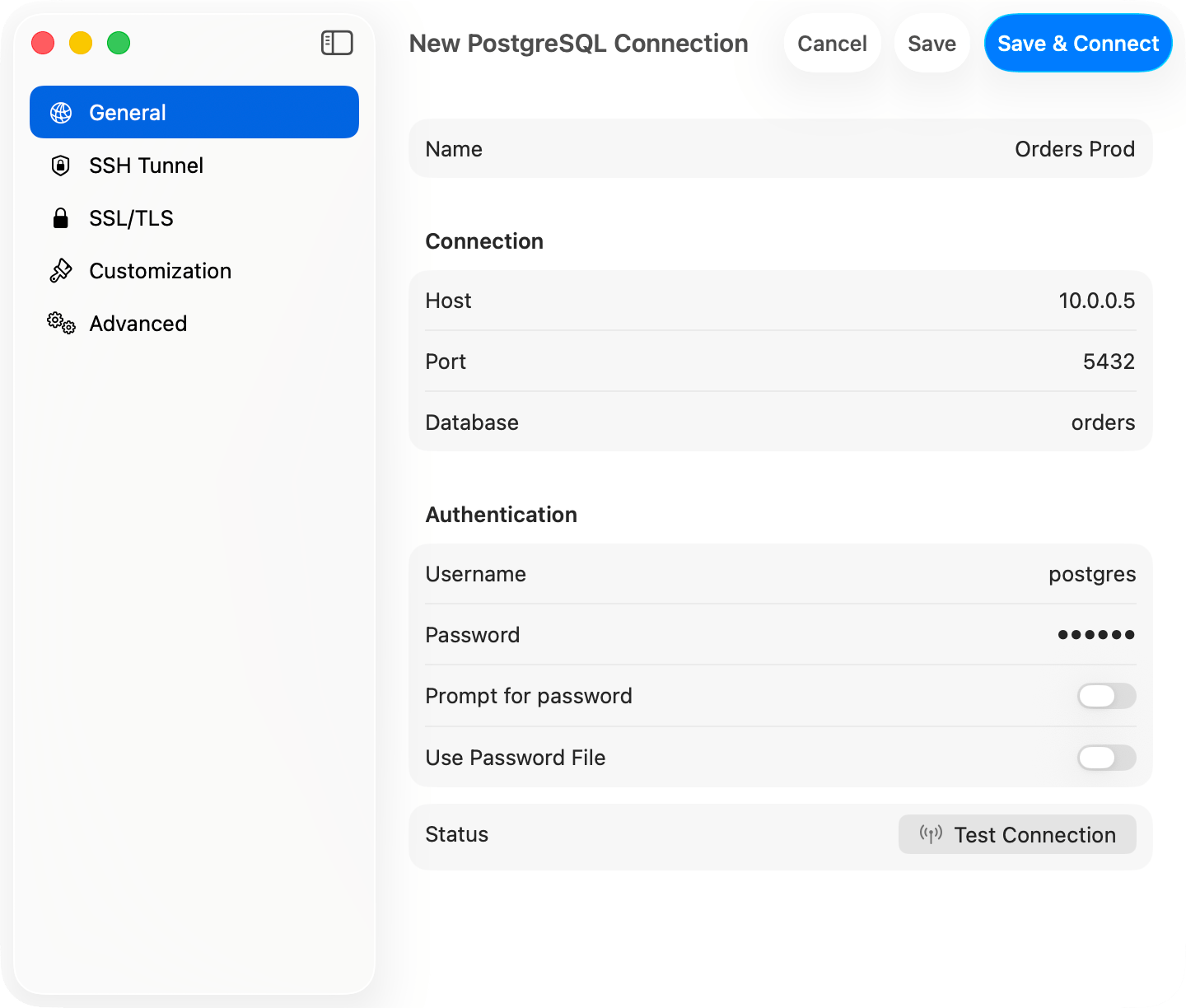
| Field | Default | Notes |
| ------------ | ----------- | ------------------------------------------- |
| **Host** | `localhost` | |
| **Port** | `5432` | |
| **Username** | - | Not pre-filled; most servers use `postgres` |
| **Database** | - | **Required** (unlike MySQL) |
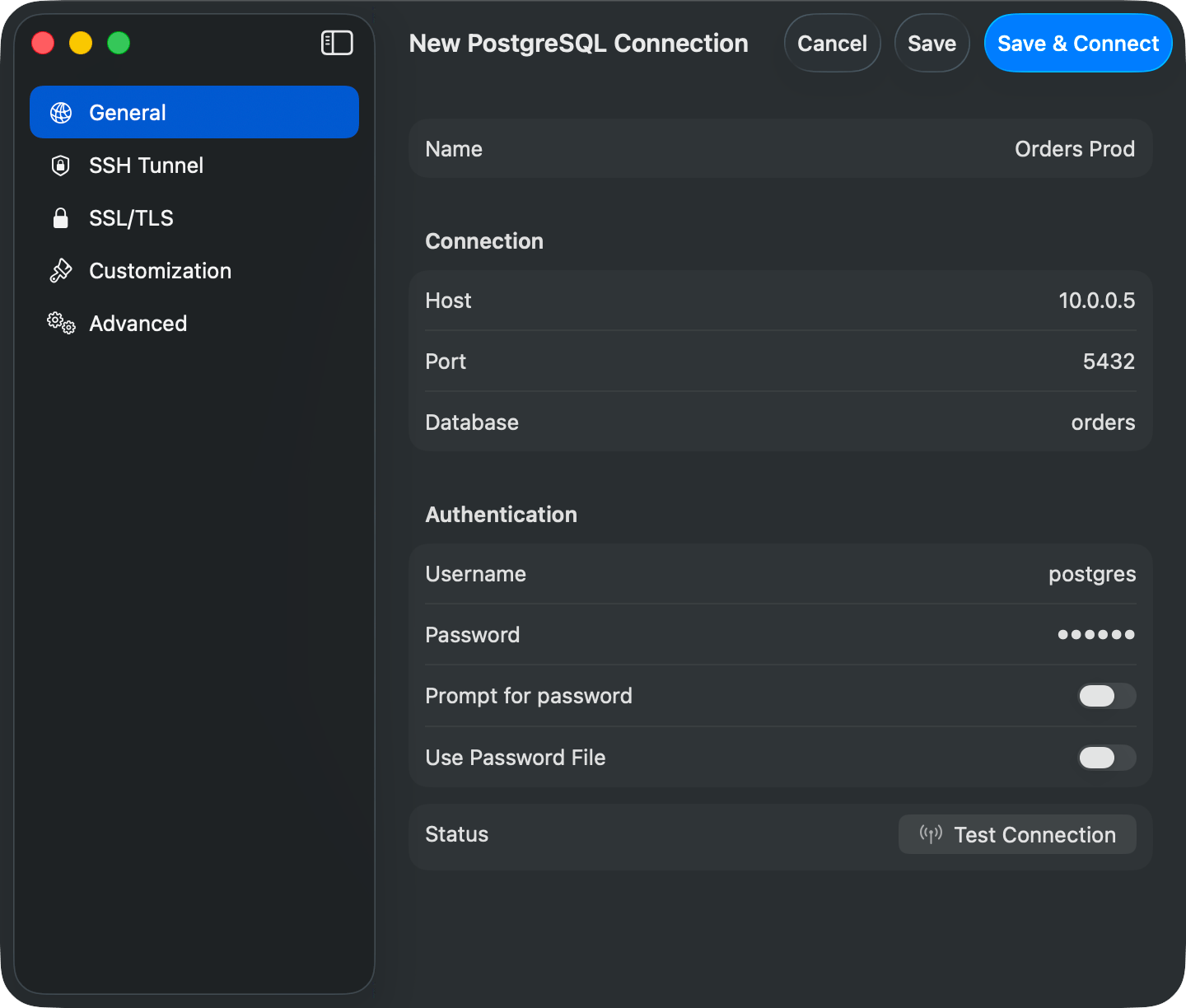
Fill in the form and click **Save & Connect**. Open URLs like `postgresql://user:pass@host/db` to connect directly, see [Connection URL Reference](/databases/connection-urls). For remote servers use [SSH tunneling](/databases/ssh-tunneling); Google Cloud SQL instances can connect through the [Cloud SQL Auth Proxy](/databases/cloud-sql-proxy).
 ## AWS IAM Authentication
Connect to RDS or Aurora with your AWS identity instead of a static password: set **Authentication** to an AWS IAM option and set **Username** to a database role granted `rds_iam`. See [AWS IAM Authentication](/databases/aws-iam) for setup, credential sources, and troubleshooting.
## Features
**Schemas**: The sidebar shows all accessible schemas and tables. Switch databases and schemas with Cmd+K. Table info shows columns, indexes, constraints, and DDL.
**Types**: `jsonb` renders as formatted JSON. `array`, `uuid`, `inet`, `timestamp with time zone`, `interval`, and `bytea` display natively.
**PostGIS**: `geometry` and `geography` columns render as EWKT with the SRID preserved (`SRID=4326;POINT(-73 40.7237)`) instead of the raw EWKB hex libpq returns. TablePro detects spatial columns from a one-time `pg_type` lookup at connect time and converts fetched values with `ST_AsEWKT(...)`. Your query is never re-run, so parameterized and multi-statement queries render EWKT too. If conversion fails, the raw hex is kept without an error.
**Users & Roles**: Manage database users, roles, and privileges under **View > Users & Roles**: see where each privilege comes from, then grant or revoke it. See [Users & Roles](/features/users-roles).
**Backup & Restore**: **Backup Dump** and **Restore Dump** run `pg_dump` and `pg_restore`. Among TablePro's databases this is available for PostgreSQL and Redshift only. See [Backup & Restore](/features/backup-restore).
## Advanced
**\~/.pgpass**: format `hostname:port:database:username:password`, wildcards (`*`) allowed. libpq silently ignores the file unless its permissions are `0600`.
**Startup Commands** (Advanced tab): SQL that runs on every connect, e.g. `SET timezone = 'UTC'; SET search_path TO myschema, public;`.
**Pre-Connect Script** (Advanced tab): a shell script that runs before connecting, e.g. to refresh credentials from a secrets manager. 10-second timeout.
## Troubleshooting
**Connection refused**: check the server is running, `listen_addresses` in `postgresql.conf` allows remote connections, and the firewall allows port 5432.
**Auth failed**: check `pg_hba.conf` for the auth method (`scram-sha-256` or `md5` for passwords, `trust` for local dev).
**SSL/TLS**: new connections default to **Preferred** (libpq `sslmode=prefer`), which tries TLS first and falls back to plain. Pick **Verify CA** to validate the server certificate. See [SSL/TLS](/features/ssl).
**Postgres-compatible engines**: connect wire-compatible engines using the PostgreSQL type. TablePro probes which system catalogs the server provides, so engines that omit catalogs like `pg_matviews` still load their tables; object kinds the server does not expose just won't appear.
## AWS IAM Authentication
Connect to RDS or Aurora with your AWS identity instead of a static password: set **Authentication** to an AWS IAM option and set **Username** to a database role granted `rds_iam`. See [AWS IAM Authentication](/databases/aws-iam) for setup, credential sources, and troubleshooting.
## Features
**Schemas**: The sidebar shows all accessible schemas and tables. Switch databases and schemas with Cmd+K. Table info shows columns, indexes, constraints, and DDL.
**Types**: `jsonb` renders as formatted JSON. `array`, `uuid`, `inet`, `timestamp with time zone`, `interval`, and `bytea` display natively.
**PostGIS**: `geometry` and `geography` columns render as EWKT with the SRID preserved (`SRID=4326;POINT(-73 40.7237)`) instead of the raw EWKB hex libpq returns. TablePro detects spatial columns from a one-time `pg_type` lookup at connect time and converts fetched values with `ST_AsEWKT(...)`. Your query is never re-run, so parameterized and multi-statement queries render EWKT too. If conversion fails, the raw hex is kept without an error.
**Users & Roles**: Manage database users, roles, and privileges under **View > Users & Roles**: see where each privilege comes from, then grant or revoke it. See [Users & Roles](/features/users-roles).
**Backup & Restore**: **Backup Dump** and **Restore Dump** run `pg_dump` and `pg_restore`. Among TablePro's databases this is available for PostgreSQL and Redshift only. See [Backup & Restore](/features/backup-restore).
## Advanced
**\~/.pgpass**: format `hostname:port:database:username:password`, wildcards (`*`) allowed. libpq silently ignores the file unless its permissions are `0600`.
**Startup Commands** (Advanced tab): SQL that runs on every connect, e.g. `SET timezone = 'UTC'; SET search_path TO myschema, public;`.
**Pre-Connect Script** (Advanced tab): a shell script that runs before connecting, e.g. to refresh credentials from a secrets manager. 10-second timeout.
## Troubleshooting
**Connection refused**: check the server is running, `listen_addresses` in `postgresql.conf` allows remote connections, and the firewall allows port 5432.
**Auth failed**: check `pg_hba.conf` for the auth method (`scram-sha-256` or `md5` for passwords, `trust` for local dev).
**SSL/TLS**: new connections default to **Preferred** (libpq `sslmode=prefer`), which tries TLS first and falls back to plain. Pick **Verify CA** to validate the server certificate. See [SSL/TLS](/features/ssl).
**Postgres-compatible engines**: connect wire-compatible engines using the PostgreSQL type. TablePro probes which system catalogs the server provides, so engines that omit catalogs like `pg_matviews` still load their tables; object kinds the server does not expose just won't appear.